You edit brew.py and change its code to:
print("Chug coffee")
The changed memento lands on your table with its pencil badge. You know this dance from Level 3: stage it, then commit it.
Push your local commits to a remote repository, and pull a friend's commits back into yours.
Congrats on pushing your way into Level 6. Speaking of pushing: when you add a new page to your scrapbook, you can send it to your friends. And when they add pages, you can fetch them into yours.
Since you duplicated your scrapbook with git clone, the copy already has the same three pages, same IDs and all. To test sending a page, you need a new page to send.
You edit brew.py and change its code to:
print("Chug coffee")
The changed memento lands on your table with its pencil badge. You know this dance from Level 3: stage it, then commit it.
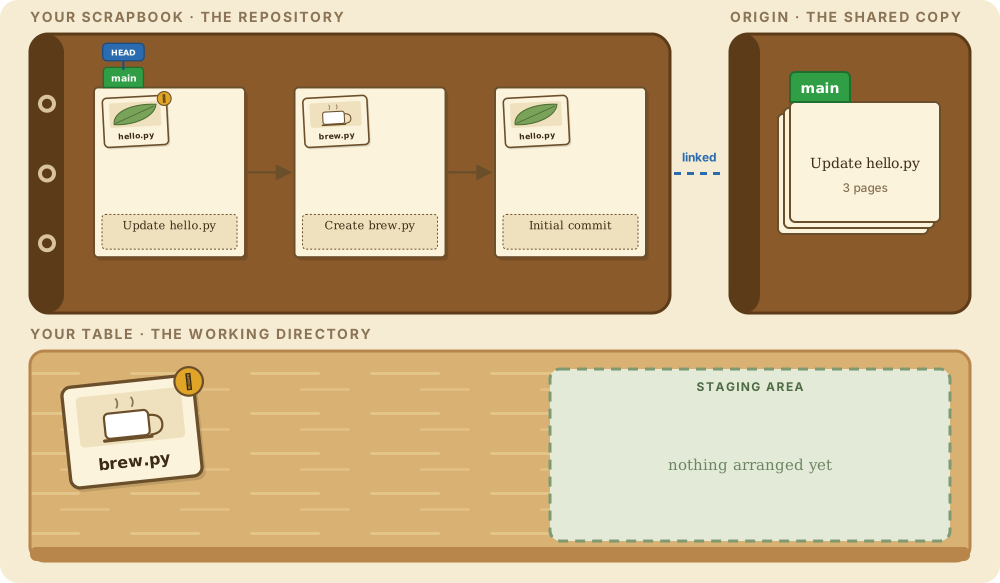
Show off some of what you learned in earlier levels. First, the change goes to the staging area.
git add brew.pyThen commit it:
git commit -m "Update brew.py"Your new fourth commit is at the front of the chain, on main, here in your local repository.
The remote, the copy you made in Level 5, has no idea this commit exists. It only knows about the three pages that existed when you cloned it.
That is the gap you are about to close. Your book has four pages; the family copy has three.
Before you push for the first time there is one tiny extra step. You must tell Git that your local main branch should sync up with the remote's copy of main. The remote's copy of a branch is known as the upstream branch, or the remote branch. Once linked, Git knows where your pages go.

git push sends every new page on your branch to the linked scrapbook named origin. --set-upstream links your local main with the remote's main, and it is only needed the first time. From now on, plain git push knows where to go.
git push --set-upstream origin mainOn the graph a new label appears: origin/main. That is Git's note of where the remote's main was the last time you talked to it. Woohoo, you successfully pushed your fourth commit. Your friends and family can now see the fourth page in the official copy. Now stop dilly-dallying.
Meanwhile, Your Friend has cloned the family copy too, and has stuck a fifth page onto it: a new file, friend.py. The shared scrapbook is now one page ahead of yours.
You need a way to retrieve that page from the shared copy into your own. In Git speak, that is called pulling changes into your repository, and git pull is the command for it.

Bring the page over:
git pullYup. Your main branch now contains a fifth commit, and you did not make it. You made the first four yourself; the fifth was made by Your Friend. Hover it and you will see their name on the stamp, and that they created a new file called friend.py.
Git's true purpose is enabling exactly this kind of collaboration and tracking by multiple developers.
Under the hood, git pull does two things: it fetches the remote's new pages, then merges them into your branch. You can do the first half on its own with git fetch, which downloads new pages and updates the origin/main label without touching your own branch. Handy when you want to look before you leap.
There is also a flag you will hear about: git push --force tells the remote to accept your branch no matter what it currently holds. On a branch someone else pushed to first, that erases their pages. It has its uses, and everyday work is not one of them.
You pulled your friend's page and made no new commits since your push. Which command would send something to the remote right now?
The graph appears here when the first command runs. The simulations are drawn by git-sim from a real repository.
The scrapbook picture appears as the story is told.
Level 6 complete
🎉 New rank unlocked
git push shares your new commits with the remote, like sending new scrapbook pages to the family. Only commits the remote lacks are sent. --set-upstream links the local and remote copies of a branch the first time you push. git pull downloads commits others made into your version of the scrapbook. Now get excited: Level 7 is about one of the most important Git concepts of all.
Get new levels and walkthroughs
New lessons and command walkthroughs, plus a Git trick or two. Your progress stays saved in this browser either way.
Free: the Git essentials cheat sheet
The 16 Git commands you'll use most, each with a picture of what it does to your repo, drawn by git-sim, on one printable sheet. Or pick your own 16. We'll email it to you, along with new levels and walkthroughs.