Git commands
How git diff compares your files, the staging area and any two commits
git diff: what changed, and compared to what
How to use this page
- slider / ▶Drag the slider, or press play, to watch the command happen. Before and After jump to either end.
- ← → · spaceStep through a multi-step command; space toggles Before / After.
- APlay or pause the loop (the page opens playing). Any manual input takes over.
- hoverA commit shows its message, author, date and parents, with its history highlighted.
- clickCopies the commit sha.
- ctrl + wheelZoom around the cursor (pinch on a trackpad). Double-click resets the view.
- EscStop playback, reset the view, close this menu.
- shareThe Share button copies a link to this graph, copies it as an image, downloads PNG/SVG/page, or posts it. #before, #after or #step=N in the link pins the state.
git-sim visually simulates any Git command in your own repos - from your terminal, IDE, or AI.
Table of Contents
- Introduction
- What is git diff?
- Watch it happen
- Reading the output
- Which two things are being compared?
- Comparing commits and branches
- A..B versus A...B
- Making big diffs readable
- During a merge conflict
- Saving a diff as a patch
- Side-by-side tools
- Is it safe?
- Common questions
- Summary
- Next steps
- Related commands
Introduction
If you've run git status, you know which files have changed. The next question is almost always "changed how?", and git diff answers it line by line. The part that trips people up is that git diff always compares two specific things, and which two depends on the arguments you give it. A plain git diff that prints nothing can simply mean all your changes are staged.
In this article, we'll:
- Read a diff line by line
- Go through the comparisons
git diffcan make, from uncommitted work to two branches - Clear up
A..BversusA...B - Cover the flags that make big diffs readable, and how to save a diff as a patch
What is git diff?
git diff prints the differences between two versions of your files. Git keeps your work in three places: the working directory (the files on disk), the staging area or index (what the next commit will contain) and the commits themselves. git diff can compare any of these with each other, or two commits with each other, and it never changes any of them.
Because it only reads, you can run it as often as you like. Running git diff --staged right before every commit is a habit that catches a lot of stray debug lines.
Watch it happen
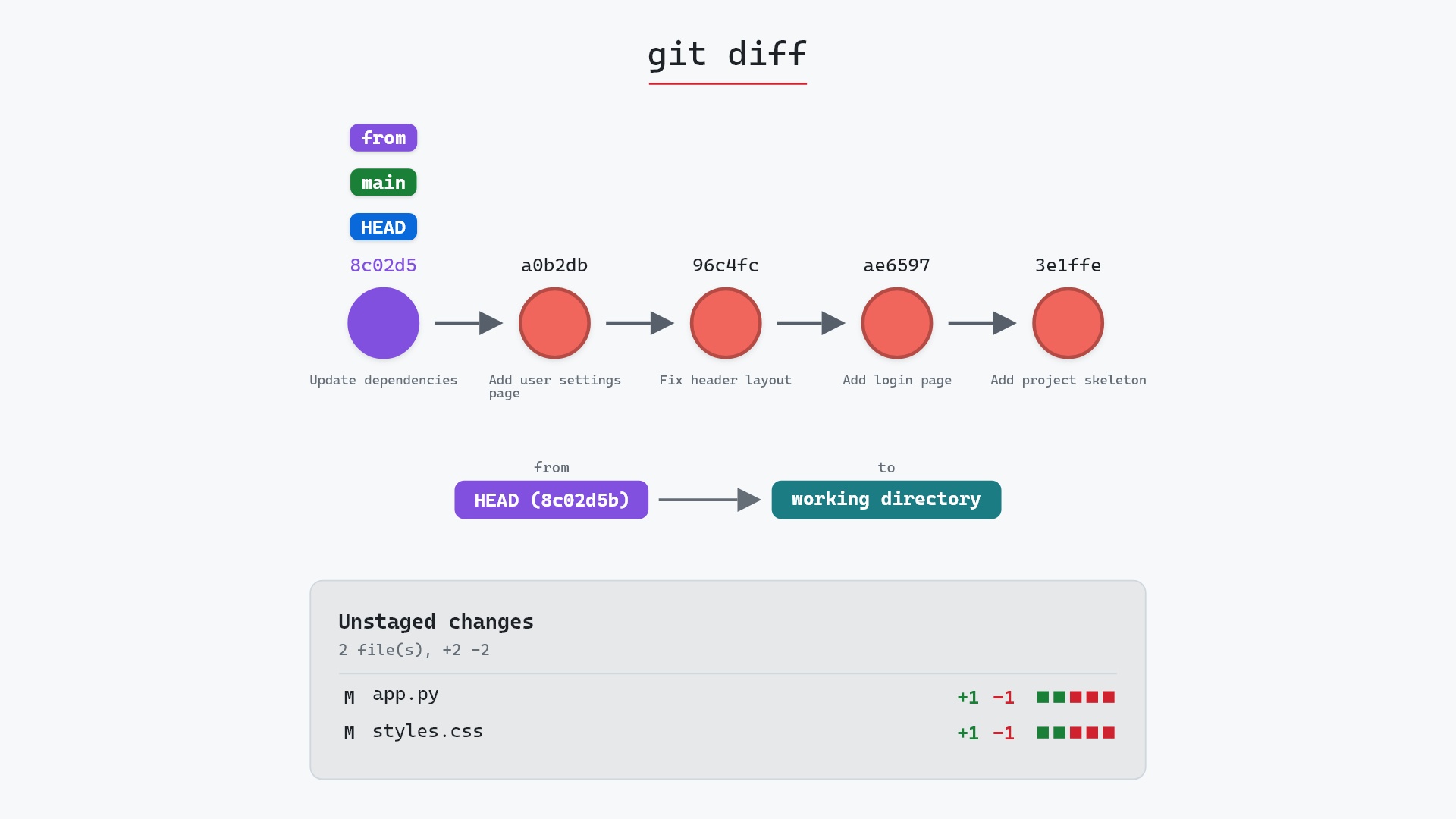
Here's git diff on a small sample repository with two files edited in the working directory and nothing staged:
- Before:
HEADis attached tomainat8c02d5b"Update dependencies".app.pyandstyles.csshave been edited in the working directory, and nothing is staged. - Git takes the two sides of the comparison: the "from" side is
HEAD(8c02d5b), and the "to" side is the working directory. - Git lists what differs, the way
git diff --statdoes:app.pyandstyles.css, each marked M for modified, with one line added and one removed. Inapp.py,passbecameprint('hello'), and instyles.cssthe header went fromdisplay: flextodisplay: grid.
Strictly, plain git diff compares your files with the staging area, not with HEAD. Nothing is staged in this sample, so the staging area holds exactly what HEAD has, and the two comparisons give the same result. That's why the comparison can start from the commit. Once you stage something, git-sim starts from the staging area instead and notes that staged changes aren't shown.
The raw git output, if you want to read along in text
git log --oneline --graph --all
before
* 1117a34 (feature) Add search tests
* e5869f0 Fix typo in search box
* fc19889 Add search box
| * 8c02d5b (HEAD -> main) Update dependencies
| * a0b2db3 Add user settings page
|/
* 96c4fc2 Fix header layout
* ae65976 Add login page
* 3e1ffe4 Add project skeleton
* 4114b2c Initial commit
after
* 1117a34 (feature) Add search tests
* e5869f0 Fix typo in search box
* fc19889 Add search box
| * 8c02d5b (HEAD -> main) Update dependencies
| * a0b2db3 Add user settings page
|/
* 96c4fc2 Fix header layout
* ae65976 Add login page
* 3e1ffe4 Add project skeleton
* 4114b2c Initial commit
what git printed
diff --git a/app.py b/app.py
index 336e825..372e690 100644
--- a/app.py
+++ b/app.py
@@ -1,2 +1,2 @@
 def main():
-    pass
+    print('hello')
diff --git a/styles.css b/styles.css
index ca7b7fa..f4036fc 100644
--- a/styles.css
+++ b/styles.css
@@ -1 +1 @@
-header { display: flex; }
+header { display: grid; }
Reading the output
Our example is a small web project. We've edited cart.py so the total includes tax, and haven't staged anything yet:
$ git diff
diff --git a/cart.py b/cart.py
index 4b1e7d2..9c03fa8 100644
--- a/cart.py
+++ b/cart.py
@@ -7,7 +7,7 @@ class Cart:

     def total(self):
         subtotal = sum(item.price * item.qty for item in self.items)
-        return subtotal
+        return round(subtotal * (1 + self.tax_rate), 2)

     def add(self, item):
         self.items.append(item)
This is the unified diff format, and every part of it means something:
diff --git a/cart.py b/cart.pynames the file on each side.a/is the old side andb/the new side.index 4b1e7d2..9c03fa8 100644gives the hashes of the file's blob before and after, and its file mode (100644is an ordinary, non-executable file).---and+++repeat the old and new names. A new file shows--- /dev/null, and a deleted one+++ /dev/null.@@ -7,7 +7,7 @@is a hunk header. The old side starts at line 7 and runs for 7 lines, and so does the new side. The text after it (class Cart:) is the nearest enclosing definition, as a hint to where you are in the file.- Lines starting with
-were removed, lines starting with+were added, and lines starting with a space are unchanged context. By default Git shows three lines of context on each side of a change.-U<n>(or--unified=<n>) changes that number.
A modified line appears as a removal followed by an addition. Git compares lines, not characters, so even a one-character edit shows up as a whole line swapped out.
Which two things are being compared?
This is the part to get straight. Each form of the command picks a different pair:
| command | from | to | shows |
|---|---|---|---|
git diff | staging area | working directory | edits you haven't staged |
git diff --staged | HEAD | staging area | what the next commit will contain |
git diff HEAD | HEAD | working directory | all uncommitted changes, staged or not |
git diff <commit> | <commit> | working directory | everything since that commit |
git diff <a> <b> | commit a | commit b | the difference between two snapshots |
--cached is an older name for --staged and does the same thing.
Let's stage the cart.py change and look again:
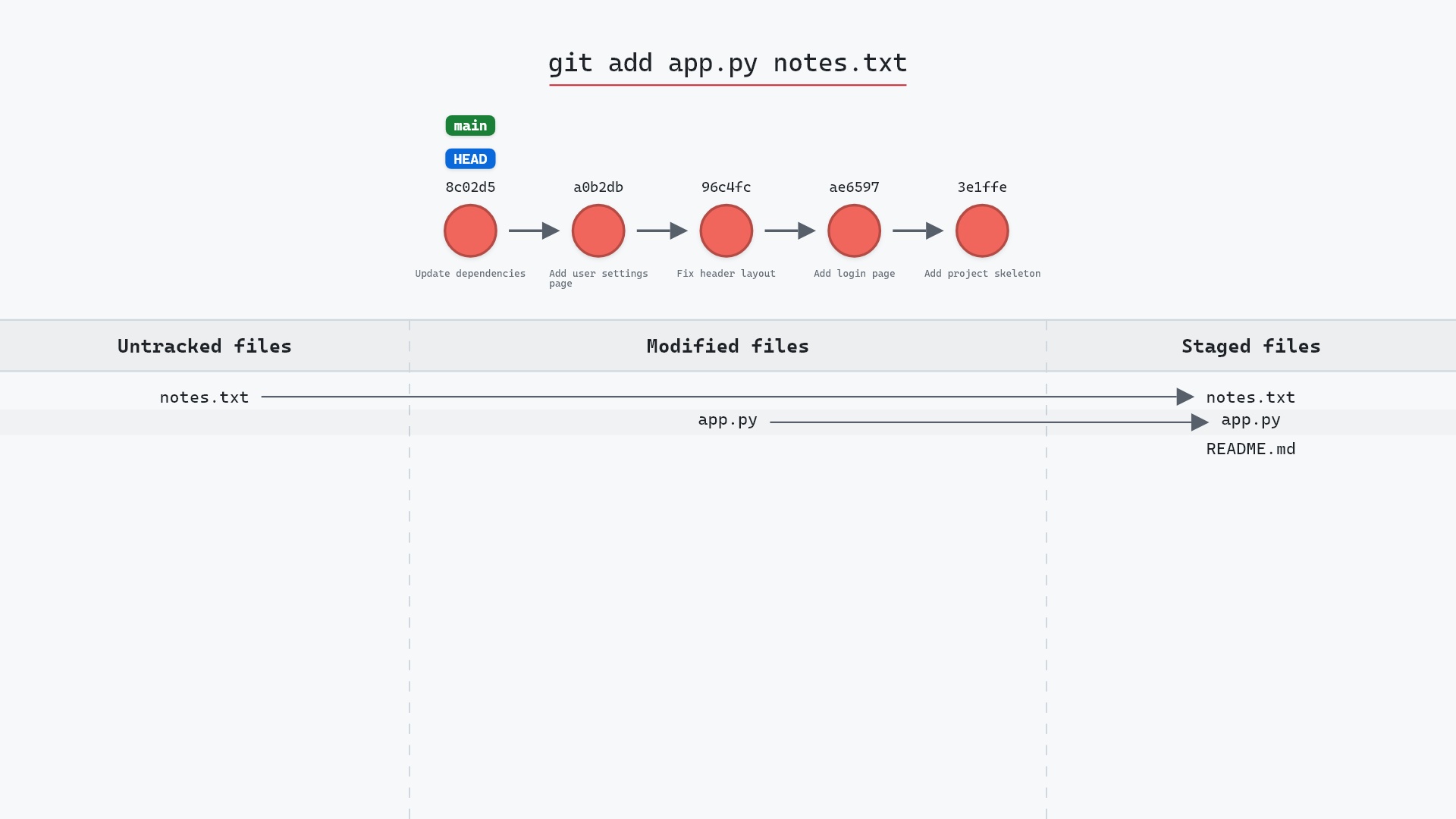
$ git add cart.py
$ git diff
$ git diff --staged
diff --git a/cart.py b/cart.py
index 4b1e7d2..9c03fa8 100644
--- a/cart.py
+++ b/cart.py
@@ -7,7 +7,7 @@ class Cart:
...
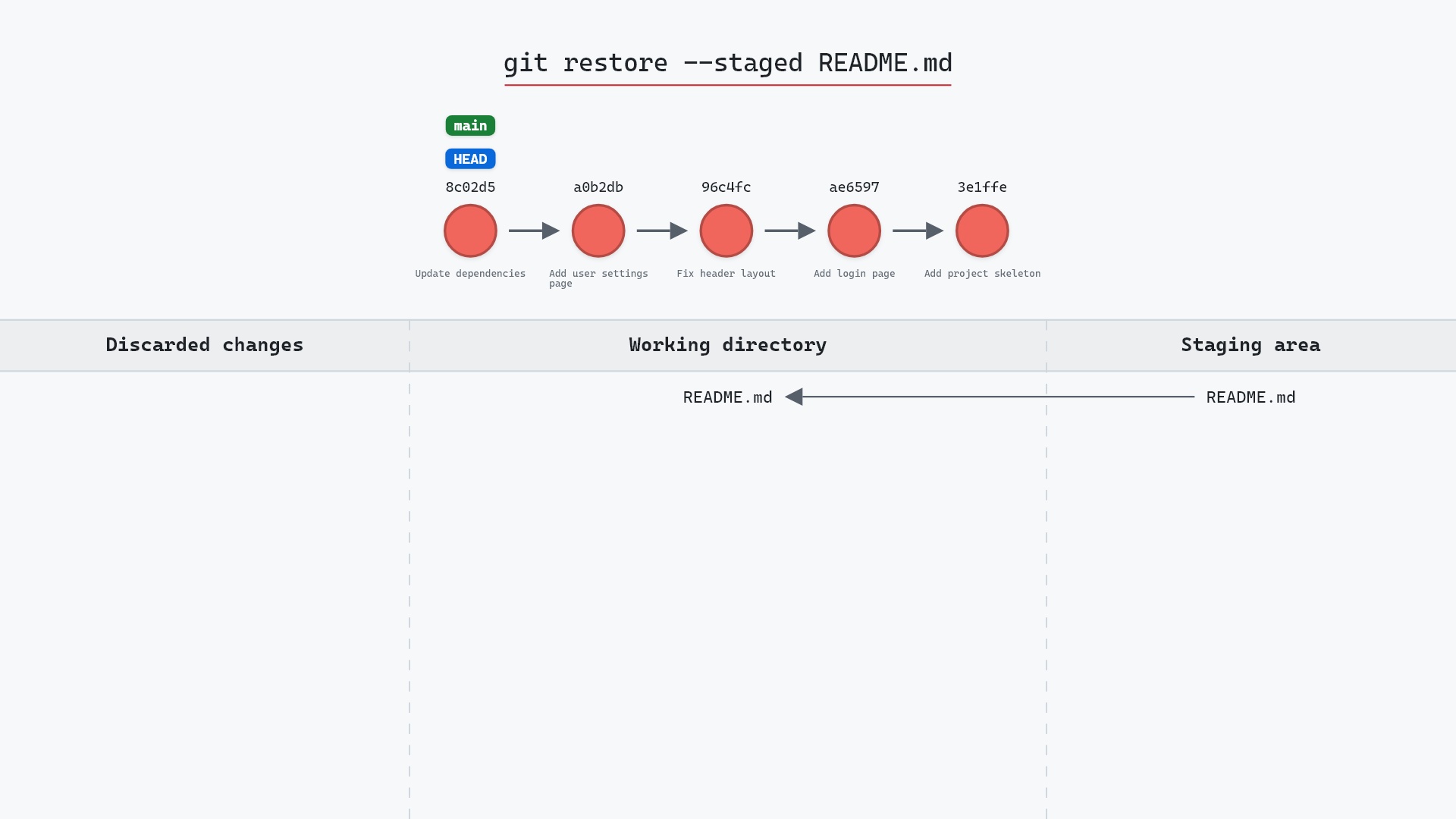
After git add, plain git diff prints nothing, because the working directory and the staging area now match. The change moved to --staged. (If this is where you usually get confused, git status explains the three places side by side, and git restore --staged moves a change back out of the staging area.)
Here's git diff --staged on the sample repository, where an edit to README.md has been staged. The comparison runs from HEAD at 8c02d5b to the staging area, and the one staged file shows up as modified, with three lines removed and three added:
Untracked files don't appear in any of these. Git has nothing to compare a brand new file against until you git add it, at which point it shows up in --staged as a whole file of + lines.
Comparing commits and branches
Any revision name works on either side. The last commit against the one before it:
git diff HEAD~1 HEAD
On the sample repository, going two commits back with git diff HEAD~2 HEAD compares 96c4fc2 "Fix header layout" with 8c02d5b "Update dependencies", the tip of main. The two commits made since 96c4fc2 each added a file, so the summary lists requirements.txt and settings.html, each with one line added:
A tag against the current tip of main:
git diff v1.4.0 main
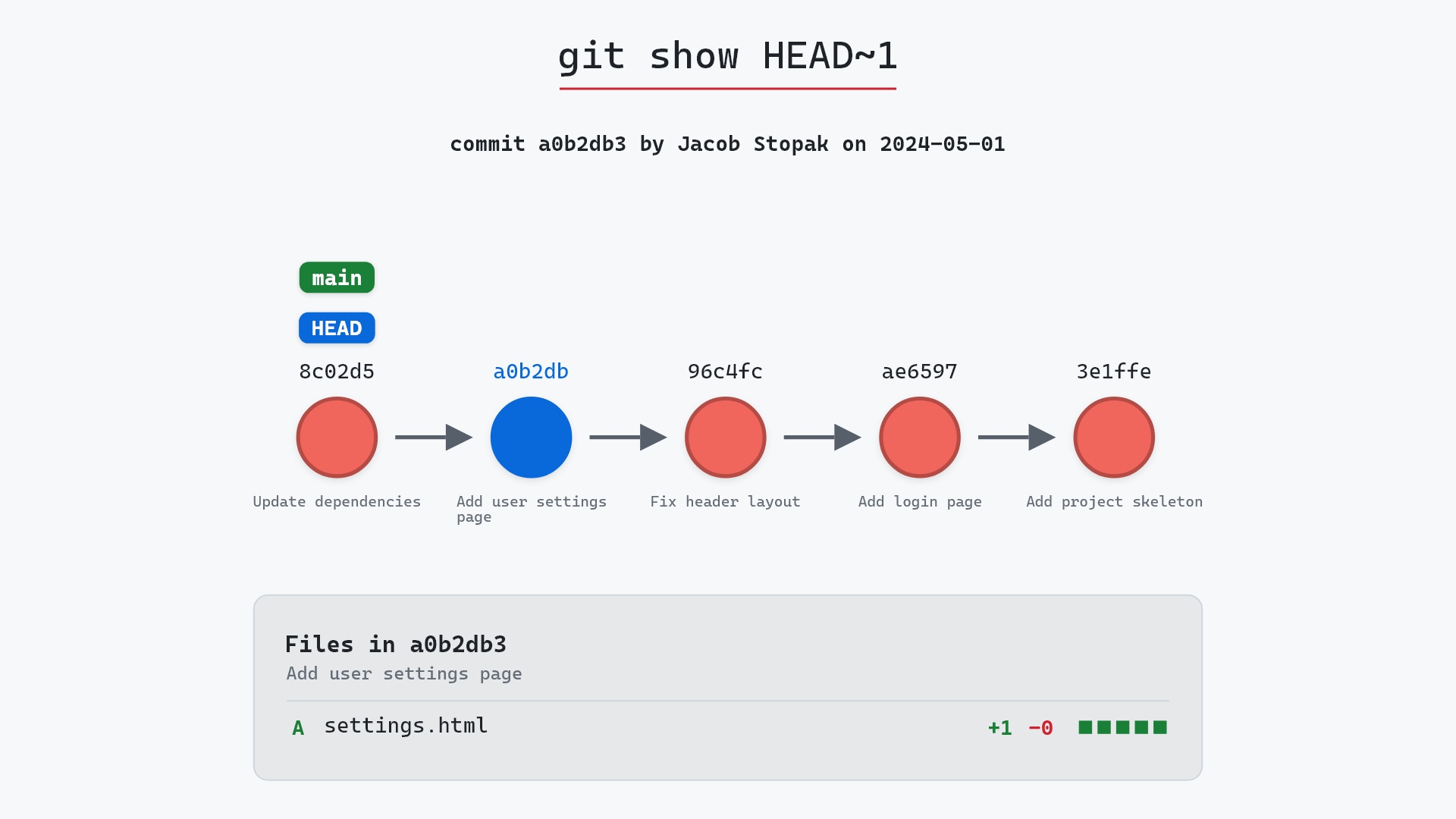
To see what one commit changed along with its message, git show is usually the better fit, since git show <commit> is its diff against its parent plus the header.
To limit any of these to certain files or folders, put the paths after --:
git diff main -- cart.py tests/
A..B versus A...B
When comparing branches, the two-dot and three-dot forms mean different things:
git diff main..featureis the same asgit diff main feature. It compares the tip ofmainwith the tip offeature, as they are right now.git diff main...featurecompares the point wherefeaturebranched offmain(their merge base) with the tip offeature. In other words, only whatfeaturehas added.
The three-dot form is usually the one you want when reviewing a branch. Say someone added a line to cart.py on main after you branched. git diff main feature shows that line as removed, since your branch doesn't have it. That makes it look as if your branch deleted it. git diff main...feature ignores whatever happened on main and shows only your branch's work, which is also what a pull request page shows.
Keep in mind that git log uses the same two notations with a different meaning. For log, main..feature is the one that lists only feature's own commits. It's one of Git's more confusing corners, so it's worth reading the dots carefully whichever command you're in.
Making big diffs readable
Back in our project, cart.py is staged and we've since added a test to tests/test_cart.py without staging it. git diff HEAD covers both, and a few flags change the shape of its output:
$ git diff HEAD --stat
 cart.py            | 2 +-
 tests/test_cart.py | 6 ++++++
 2 files changed, 7 insertions(+), 1 deletion(-)

$ git diff HEAD --name-only
cart.py
tests/test_cart.py

$ git diff HEAD --name-status
M	cart.py
M	tests/test_cart.py
--stat gives a per-file summary, --name-only lists just the paths (handy for piping into another command), and --name-status adds a letter for each: A added, M modified, D deleted, R renamed.
When a line changed only a little, --word-diff marks the changed words inside it instead of swapping the whole line:
$ git diff --staged --word-diff cart.py
diff --git a/cart.py b/cart.py
index 4b1e7d2..9c03fa8 100644
--- a/cart.py
+++ b/cart.py
@@ -7,7 +7,7 @@ class Cart:

    def total(self):
        subtotal = sum(item.price * item.qty for item in self.items)
        return [-subtotal-]{+round(subtotal * (1 + self.tax_rate), 2)+}

    def add(self, item):
        self.items.append(item)
In a terminal, --color-words shows the same thing with colors instead of brackets. It works well for prose, like Markdown documentation, where one edited word would otherwise mark a whole paragraph as changed.
Other flags worth knowing (the git diff documentation has the full list):
-wignores all whitespace, and-bignores changes in the amount of whitespace. Both help after someone reindents a file.--checkwarns about whitespace errors, such as trailing spaces, in the changes.-Mdetects renames (on by default in recent Git), so a moved file shows as a rename with a small diff, not a whole deletion plus a whole addition.--no-indexcompares two files on disk, even outside a repository:git diff --no-index old.txt new.txt.
During a merge conflict
While a merge is stopped on conflicts, a plain git diff shows a combined diff of the conflicted files, with two columns of + and - markers, one per side. To compare the working copy with just one side, use git diff --ours (your branch), git diff --theirs (the branch being merged in) or git diff --base (the common ancestor). During a rebase, "ours" and "theirs" swap, because the branch being rebased onto is the one you're sitting on.
Saving a diff as a patch
A diff is also a patch: instructions another copy of the files can apply. Redirect it to a file:
git diff > tax.patch
Someone else (or you, on another branch) can apply it to their working directory:
git apply tax.patch
git apply applies the whole patch or nothing. For whole commits with their author and message, git format-patch writes one patch file per commit and git am turns them back into commits, which is how the Linux kernel and Git itself still take contributions by email.
Side-by-side tools
If you'd rather see changes in two panes, git difftool opens the same comparison in an external viewer (VS Code, Meld, Beyond Compare, and others). It takes the same arguments as git diff, so git difftool main...feature works. git difftool --tool-help lists the tools it found on your machine, and git config --global diff.tool <name> picks the default.
Is it safe?
Yes. git diff only reads your files, the staging area and your commits. It never changes any of them, whatever arguments you give it.
Safe git-sim pre-flight
'diff' only reads; nothing in the repository changes.
Common questions
Why does git diff show nothing when I have changes?
Your changes are probably staged. Plain git diff compares the working directory with the staging area, so after git add it has nothing to report. Run git diff --staged to see staged changes, or git diff HEAD for everything uncommitted.
What is the difference between git diff --staged and --cached?
Nothing. They are two names for the same option. --staged was added later because it describes what the option does more clearly.
How do I see the changes on my branch compared to main?
git diff main...your-branch shows only what your branch added since it split from main. Add --stat for the summary.
How do I see what changed in one file?
Put the path after --: git diff -- path/to/file. It works with every form, for example git diff main...feature -- path/to/file.
Summary
In this article, we read a unified diff line by line, matched each form of git diff to the two things it compares, sorted out A..B from A...B, and went over the flags for summaries, word-level diffs and patches.
Next steps
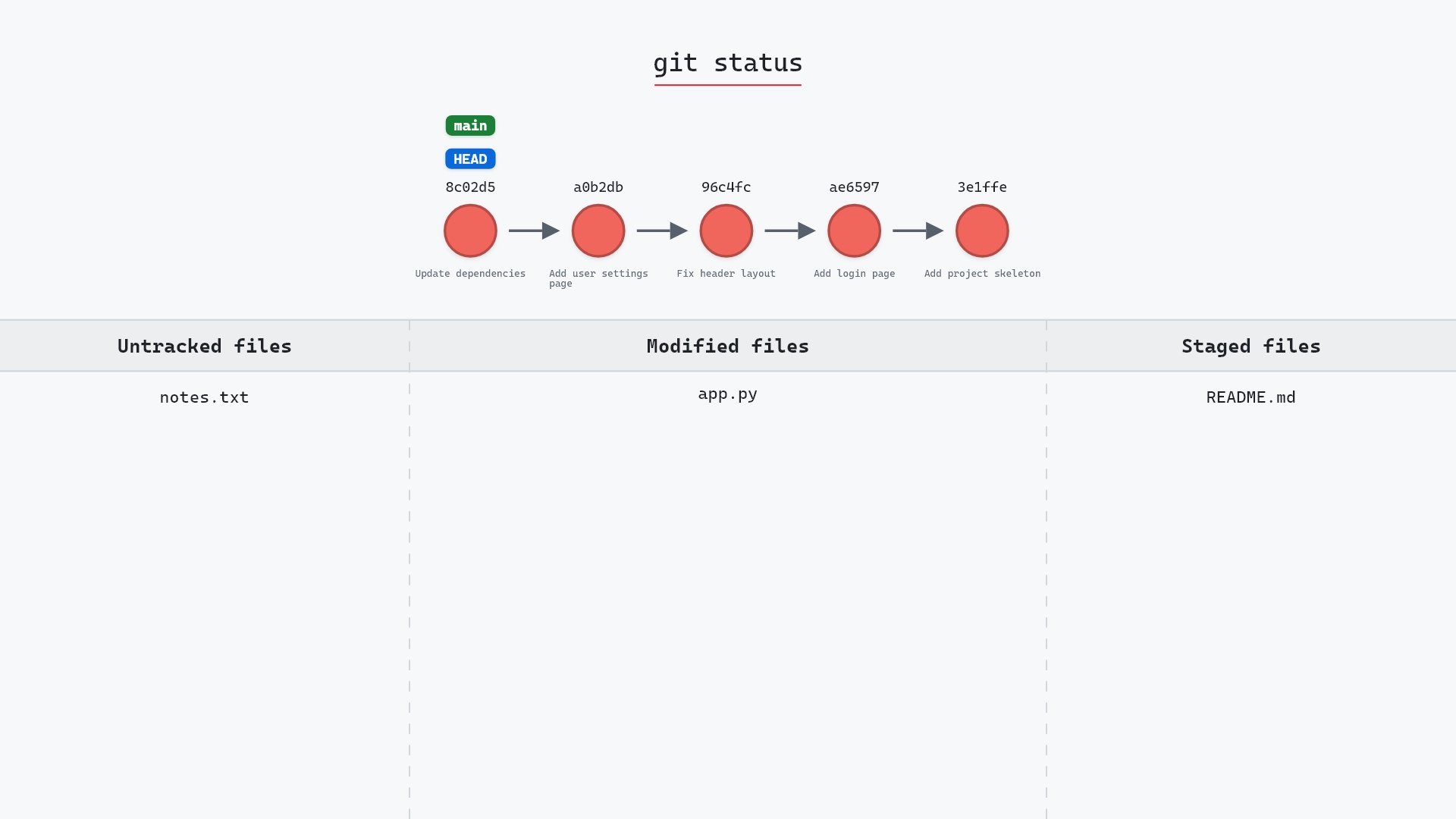
git status is the quick overview before you reach for diff, and git add moves changes into the staging area that git diff --staged reads. To look at the diff of one commit together with its message, see git show. If you'd like to practice the working directory, staging area and commit trio hands-on, the free interactive Git lessons build it up step by step.
Related commands
- git status, the one-line summary of what changed
- git add, to stage changes for
git diff --staged - git show, one commit and its diff
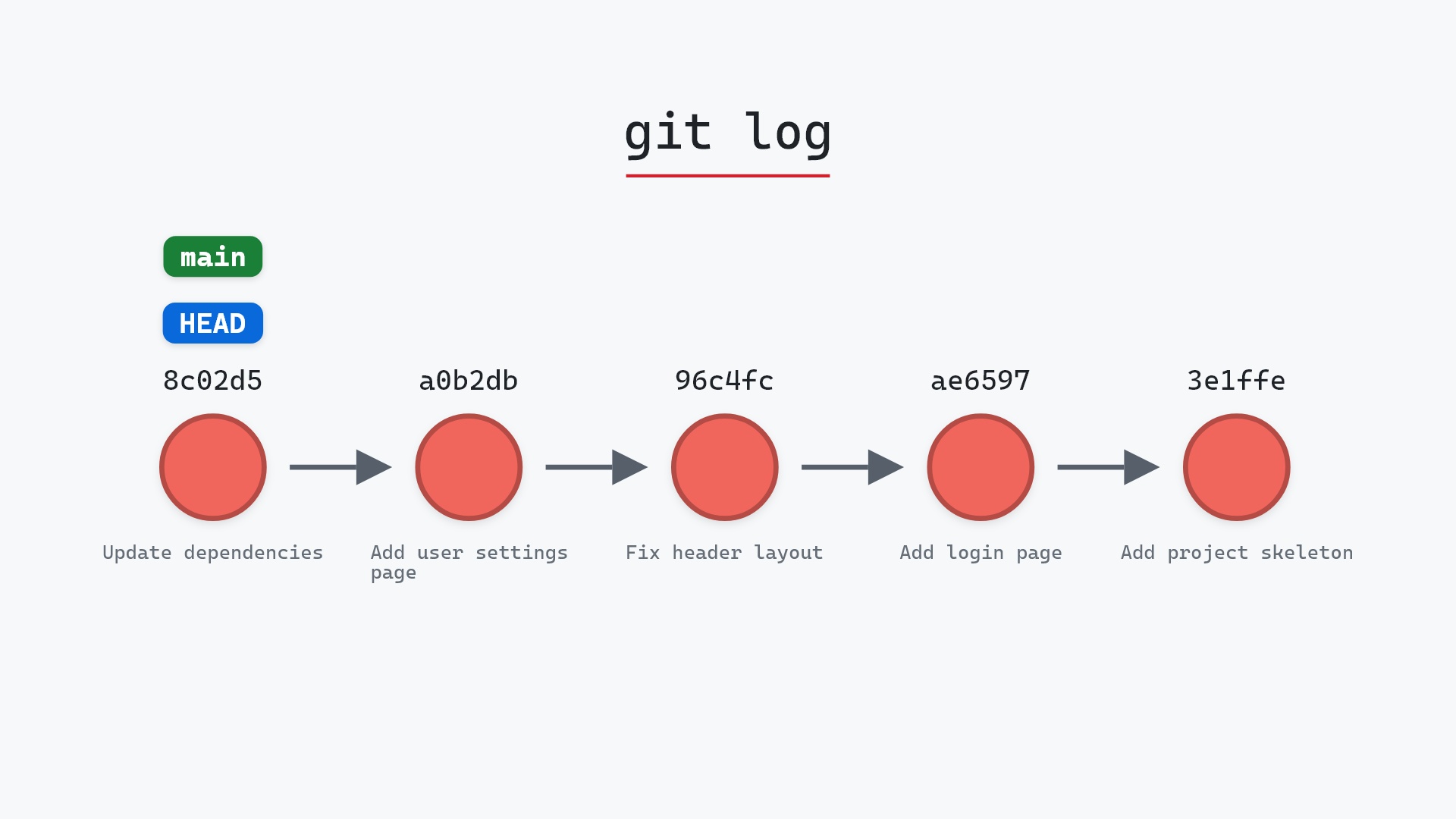
- git log, to find the commits to compare
- git restore --staged, to unstage what the diff showed
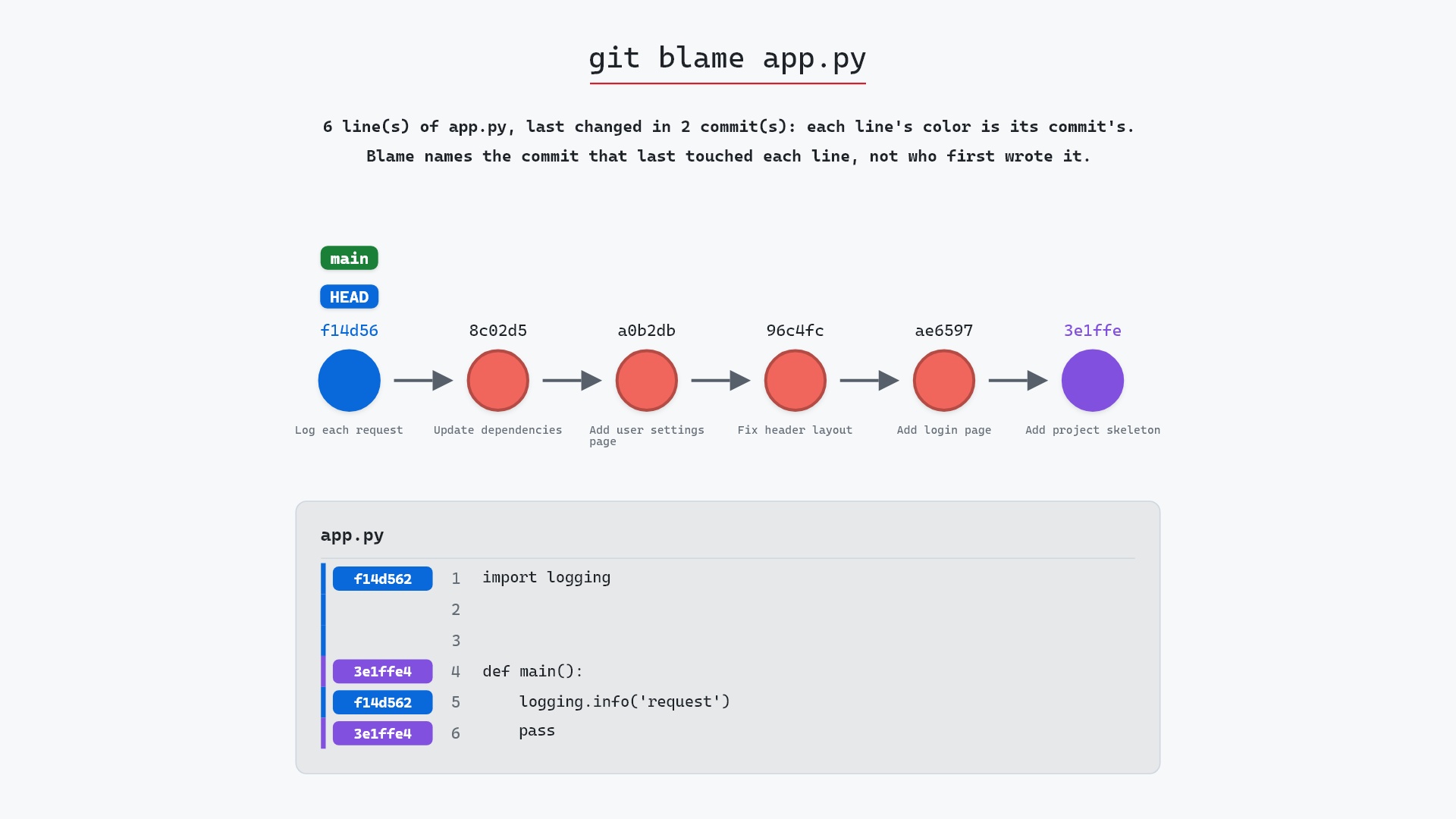
- git blame, which commit last changed each line