Git commands
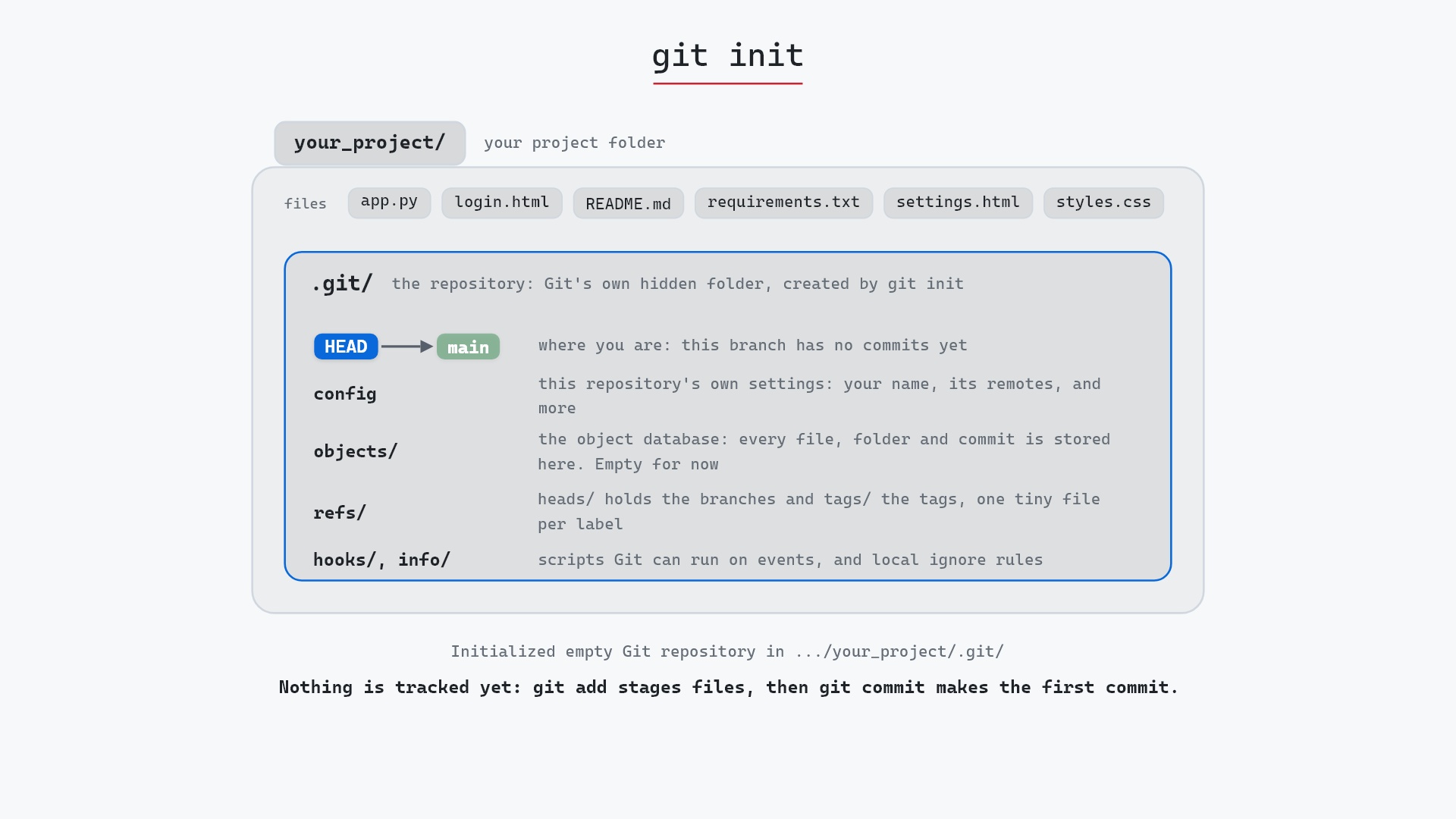
What git init puts inside the .git folder
git init: where every repository starts
How to use this page
- slider / ▶Drag the slider, or press play, to watch the command happen. Before and After jump to either end.
- ← → · spaceStep through a multi-step command; space toggles Before / After.
- APlay or pause the loop (the page opens playing). Any manual input takes over.
- hoverA commit shows its message, author, date and parents, with its history highlighted.
- clickCopies the commit sha.
- ctrl + wheelZoom around the cursor (pinch on a trackpad). Double-click resets the view.
- EscStop playback, reset the view, close this menu.
- shareThe Share button copies a link to this graph, copies it as an image, downloads PNG/SVG/page, or posts it. #before, #after or #step=N in the link pins the state.
git-sim visually simulates any Git command in your own repos - from your terminal, IDE, or AI.
Table of Contents
- Introduction
- What is git init?
- Watch it happen
- Before and after
- What's inside .git
- Naming the first branch
- Is it safe?
- Useful forms
- How to undo it
- Try it on your repository
- Common questions
- Summary
- Next steps
- Related commands
Introduction
If you've got a folder full of code and want Git to start keeping track of it, git init is the first command you run. It's also the one people run once and never think about again, which is a shame, because everything Git does later happens inside the folder it creates.
In this article, we'll:
- Watch
git initturn a plain project folder into a repository - Look at what's inside the new
.gitfolder - Cover naming the first branch, and what to do if you ran it in the wrong place
What is git init?
git init creates an empty Git repository in the current directory. In practice that means one new hidden folder, .git, holding the object database, the refs, a config file and a HEAD file. Your own files are left exactly as they were. Git knows they exist, but it isn't tracking any of them yet.
Watch it happen
Our sample repo starts as a project folder with a few files and no repository yet. Here's git init:
- Before: the
your_project/folder with six files in it (app.py,login.html,README.md,requirements.txt,settings.htmlandstyles.css) and no.gitfolder. - Git creates
.git/insideyour_project/, withHEADpointing atmain, aconfigfile, an emptyobjects/database,refs/for branches and tags, andhooks/andinfo/. - Git prints
Initialized empty Git repository in .../your_project/.git/. The six files are untouched and untracked, and nothing has been staged or committed.
Before and after
There's no graph to compare here, since before the command there was no repository to draw and after it there are still no commits. git status tells the story instead. Before, it fails with fatal: not a git repository. After, it says:
## No commits yet on main
?? README.md
?? app.py
?? login.html
?? requirements.txt
?? settings.html
?? styles.css
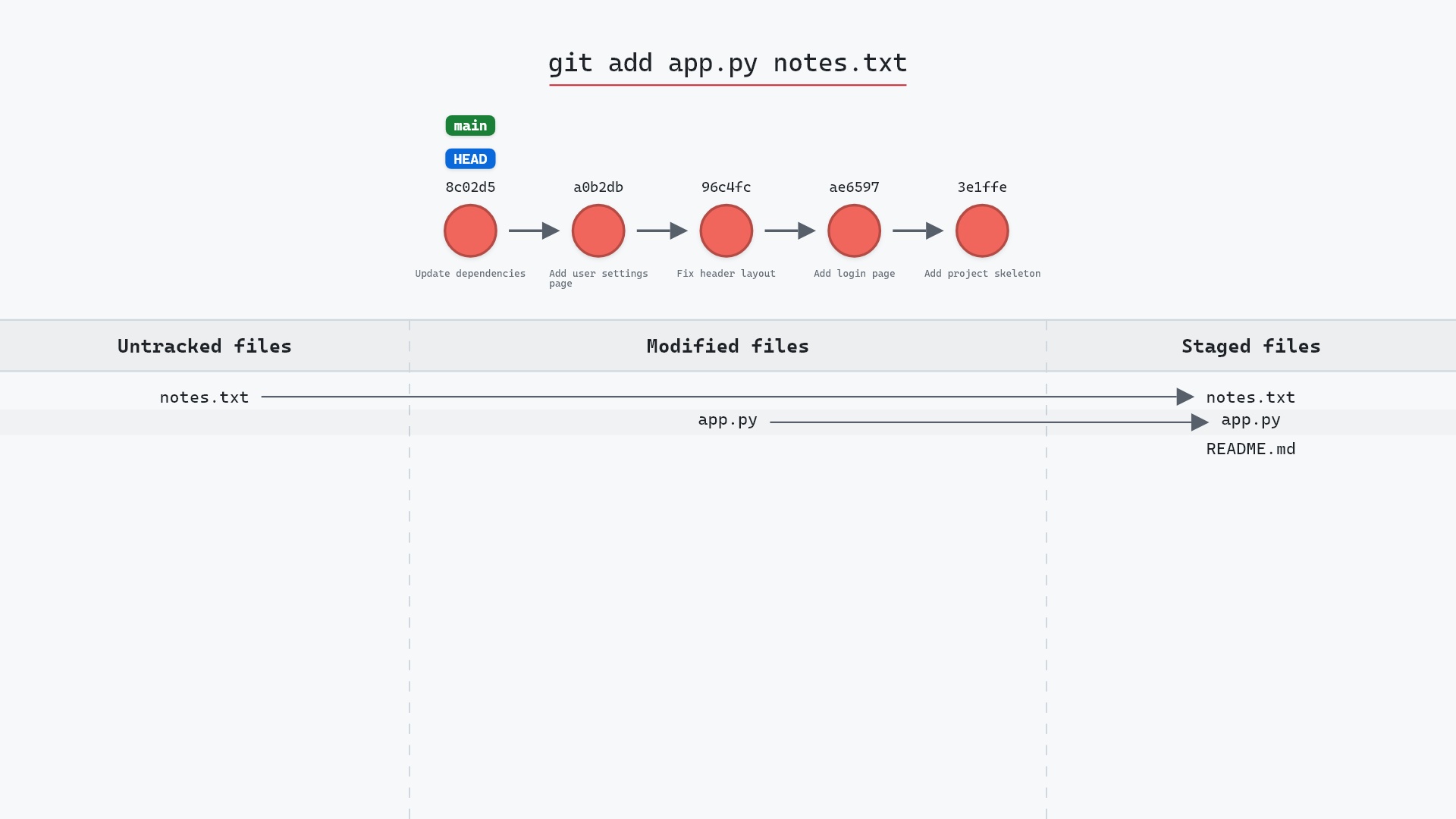
Every file is untracked (??). The folder became a repository, but the files didn't become part of it. That takes a git add and a git commit.
What's inside .git
List the new folder and you'll find something like this (Pro Git's Plumbing and Porcelain section describes each entry):
.git/
  HEAD          ref: refs/heads/main
  config        [core] settings for this repository
  description   used only by GitWeb
  hooks/        sample hook scripts, all disabled (*.sample)
  info/exclude  ignore rules that aren't committed
  objects/      the object database, empty apart from info/ and pack/
  refs/heads/   branches, empty for now
  refs/tags/    tags, empty for now
Notice HEAD already says refs/heads/main, but refs/heads/ is empty. That's an unborn branch: HEAD names a branch that doesn't exist yet. Git creates the main ref when you make the first commit, because a branch is just a pointer to a commit and there isn't one to point at. (If you want the longer version of what HEAD is, I wrote about Git HEAD separately.) That's also why git log right after init complains that main "does not have any commits yet".
init-db, and all it did was create the object store, in a folder named .dircache rather than .git. Today's git init does a lot more setup, but git init-db still works as a synonym.
Naming the first branch
Our sample shows main because the machine that built it has init.defaultBranch set to main. Out of the box, Git 2.x still names the first branch master and prints a hint suggesting you pick a name. Since Git 2.28 there are two ways to choose:
git init -b main                          # this repository only
git config --global init.defaultBranch main   # every new repository
-b is short for --initial-branch. If you forgot both, rename the branch before (or after) the first commit with git branch -m main.
Is it safe?
Yes. git init only creates .git and never touches your files. Running it again inside an existing repository is safe too: Git prints Reinitialized existing Git repository, leaves your history and branches alone, and only adds anything missing, such as new hook templates.
The one thing to watch is running it in the wrong directory, like your home folder. Git will happily turn that into a repository, and every folder underneath will then look like it's inside one.
Useful forms
git init <directory>creates the directory if needed and initializes it, so you don't have tocdfirst.git init -b <name>sets the first branch name.git init --barecreates a repository with no working directory, the usual shape for a shared remote (conventionally namedsomething.git).git init --template=<dir>copies hooks and other files from your own template directory.git init --separate-git-dir=<dir>keeps the repository somewhere else and leaves a.gitfile pointing at it.
How to undo it
Delete the .git folder:
rm -rf .git
On Windows, Remove-Item -Recurse -Force .git in PowerShell. Your files stay where they are. Just be sure this is a repository you meant to throw away, because .git is where every commit lives. In a fresh one there's nothing in it yet, so nothing is lost.
Try it on your repository
pip install git-sim
git-sim init
git-sim draws your folder and the .git folder that init would add to it, without creating anything. Run it inside an existing repository and it tells you init would change nothing.
Common questions
What does git init do?
It creates a hidden .git folder in the current directory containing an empty object database, a refs directory, a config file and a HEAD that points at a branch with no commits yet. Your files are not changed or tracked.
How do I set the default branch name for git init?
Use git init -b main for one repository, or git config --global init.defaultBranch main for all new ones. Both need Git 2.28 or later.
Is it safe to run git init in an existing repository?
Yes. It reinitializes without touching commits, branches or config you've set, and only adds missing template files.
How do I undo git init?
Delete the .git folder. Your working files stay, and the folder goes back to being a plain directory.
Summary
In this article, we watched git init add a .git folder to a project with six files, saw that the files stayed untracked and the main branch stayed unborn until the first commit, and covered naming that branch and removing a repository you didn't want.
Next steps
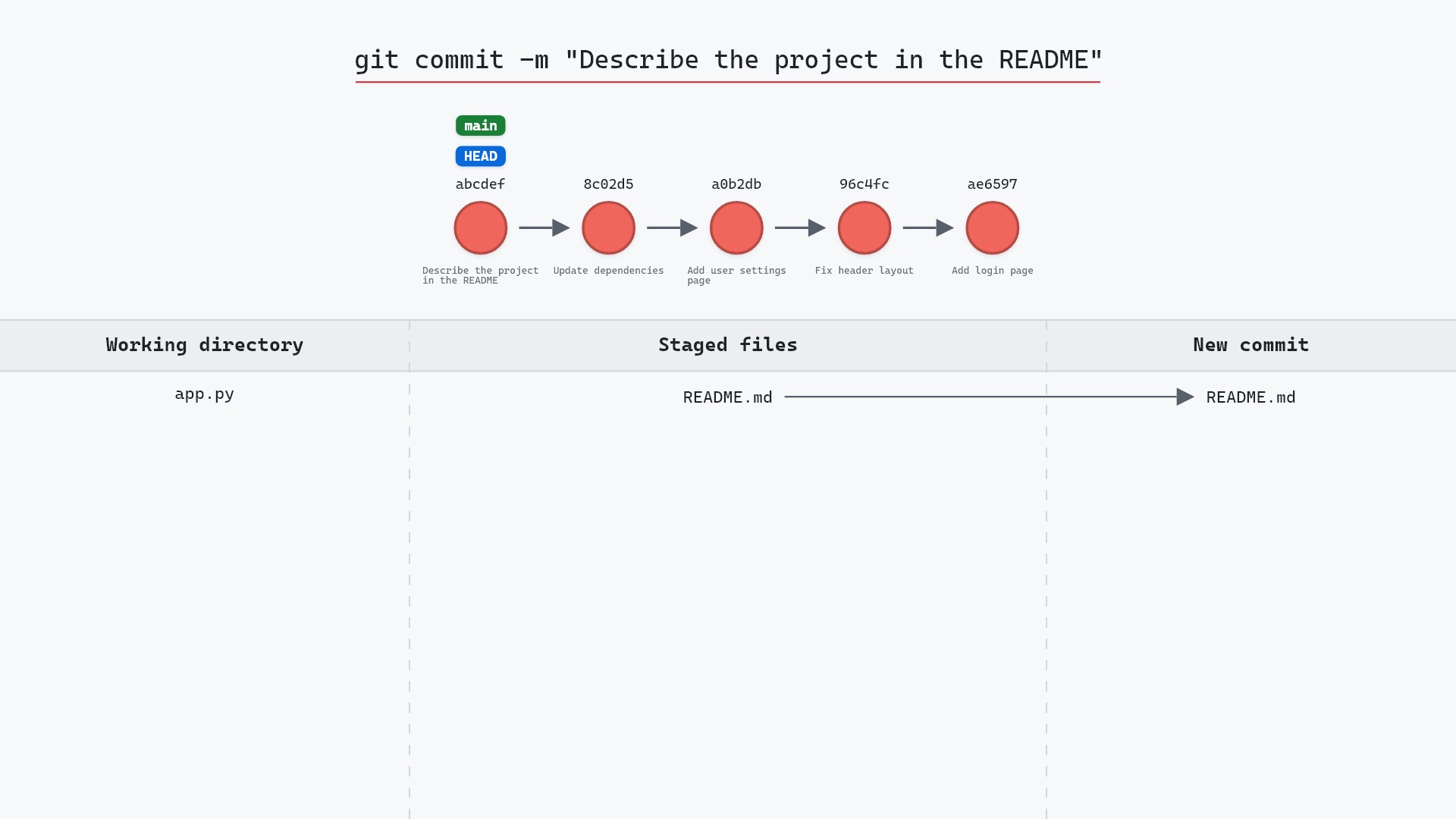
git add and git commit turn those untracked files into the first commit. If the project should live on a server too, git remote add connects it to one. If the repository already exists somewhere, you want git clone instead.
Related commands
- git clone, to copy an existing repository instead
- git config, to set your name before the first commit
- git add, to start tracking files
- git commit, to make the first commit
- git status, to see what Git thinks of your files
- git remote add, to connect the new repository to a server