Git commands
What git reset --hard throws away, and the window you have to get it back
git reset --hard: the one that actually deletes
How to use this page
- slider / ▶Drag the slider, or press play, to watch the command happen. Before and After jump to either end.
- ← → · spaceStep through a multi-step command; space toggles Before / After.
- APlay or pause the loop (the page opens playing). Any manual input takes over.
- hoverA commit shows its message, author, date and parents, with its history highlighted.
- clickCopies the commit sha.
- ctrl + wheelZoom around the cursor (pinch on a trackpad). Double-click resets the view.
- EscStop playback, reset the view, close this menu.
- shareThe Share button copies a link to this graph, copies it as an image, downloads PNG/SVG/page, or posts it. #before, #after or #step=N in the link pins the state.
git-sim visually simulates any Git command in your own repos - from your terminal, IDE, or AI.
Table of Contents
- Introduction
- What does git reset --hard do?
- Watch it happen
- Before and after
- Is it safe?
- How to undo it
- Safer ways to get what you wanted
- Try it on your repository
- Common questions
- Summary
- Next steps
- Related commands
Introduction
git reset --hard is probably the most dangerous command that us devs run on a regular basis. It's what you type when you want your branch, your staging area, and your working directory to all match some other commit immediately. It does exactly that, and it overwrites any uncommitted changes in the process.
In this article, we'll:
- Watch
git reset --hard HEAD~2run on a small repository and see everything it touches - Compare the repo before and after, including the working directory
- Separate what's recoverable from what is gone for good
- Use the reflog to put the commits back
What does git reset --hard do?
git reset --hard <commit> does three things at once, and it's easier to understand if we look at them separately:
- It moves the current branch to
<commit>.HEADcomes along, becauseHEADpoints at the branch (see What is Git HEAD?). - It rewrites the staging area (the index) to match that commit.
- It rewrites your working directory to match that commit too.
The other two kinds of reset do fewer of these steps (Pro Git's Reset Demystified chapter walks through all three). --soft only does step 1, and the default --mixed does steps 1 and 2. --hard is the only one that modifies your working directory, so it's the only one that can destroy uncommitted work.
Watch it happen
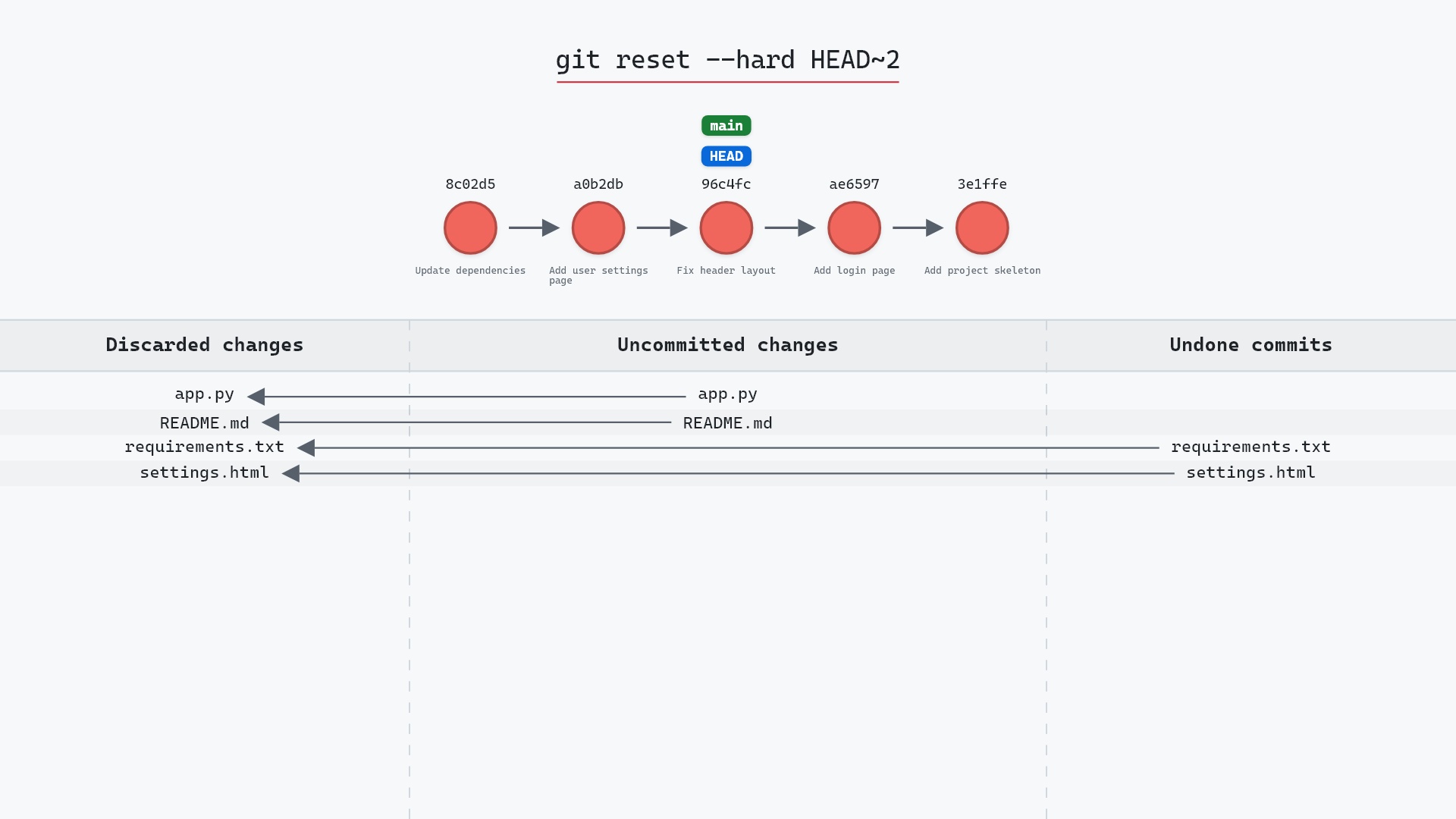
Here is git-sim's simulation of git reset --hard HEAD~2 on our sample repo, where two commits to discard plus uncommitted changes in the working tree. Press play, or click a step below to jump the graph to that point:
- Before:
HEADis attached tomainat8c02d5b, "Update dependencies". At stake: a staged edit toREADME.md, an unstaged edit toapp.py, and the changes in the two commits being undone. mainmoves two commits back, from "Update dependencies" to "Fix header layout" (96c4fc2), andHEADmoves with it.- Git resets the index and working tree to match
96c4fc2, discarding uncommitted and committed changes alike. The two commits still exist, but no branch points at them now. - The
featurebranch doesn't change at all. Reset only moves the branch you currently have checked out.
Before and after
Here is the whole repository before and after the real command ran:
The two commits are no longer on main. The graph can't show you the working directory though, so let's look at that separately. Before the reset, git status listed three things: a staged edit to README.md, an unstaged edit to app.py, and an untracked file called notes.txt. After the reset, only notes.txt remains.
The raw git output, if you want to read along in text
git log --oneline --graph --all
before
* 1117a34 (feature) Add search tests
* e5869f0 Fix typo in search box
* fc19889 Add search box
| * 8c02d5b (HEAD -> main) Update dependencies
| * a0b2db3 Add user settings page
|/
* 96c4fc2 Fix header layout
* ae65976 Add login page
* 3e1ffe4 Add project skeleton
* 4114b2c Initial commit
after
* 1117a34 (feature) Add search tests
* e5869f0 Fix typo in search box
* fc19889 Add search box
* 96c4fc2 (HEAD -> main) Fix header layout
* ae65976 Add login page
* 3e1ffe4 Add project skeleton
* 4114b2c Initial commit
what git printed
HEAD is now at 96c4fc2 Fix header layoutThe staged edit and the unstaged edit were both overwritten with the versions of those files from commit 96c4fc2. The untracked file was left alone, because reset only operates on files that Git is tracking. (Keep in mind that git clean is the command that removes untracked files. Running the two together is a common way to accidentally wipe out a working directory.)
Is it safe?
Destructive git-sim pre-flight
Moves main from 8c02d5b to 96c4fc2 (hard reset).
What you would lose
- 2 commit(s) removed from branch main
- staged changes in README.md (NOT recoverable)
- unstaged changes in app.py (NOT recoverable)
The way back
Commits stay in the reflog ~90 days: git reset --hard 8c02d5b
- Uncommitted changes discarded by --hard cannot be recovered from the reflog.
Notice how git-sim's pre-flight report separates the two kinds of loss. The commits can be recovered, because Git doesn't delete a commit just because no branch points at it anymore. The uncommitted edits cannot, because they were never stored as a commit in the first place, so there is no object in Git's database to restore them from.
git reset --hard to get rid of a couple of bad commits and only afterwards realized I had about forty minutes of unstaged edits in another file, which were gone for good. These days, before I run anything with --hard in it, I either git stash or make a quick wip commit first, since I can always throw that commit away later.
How to undo it
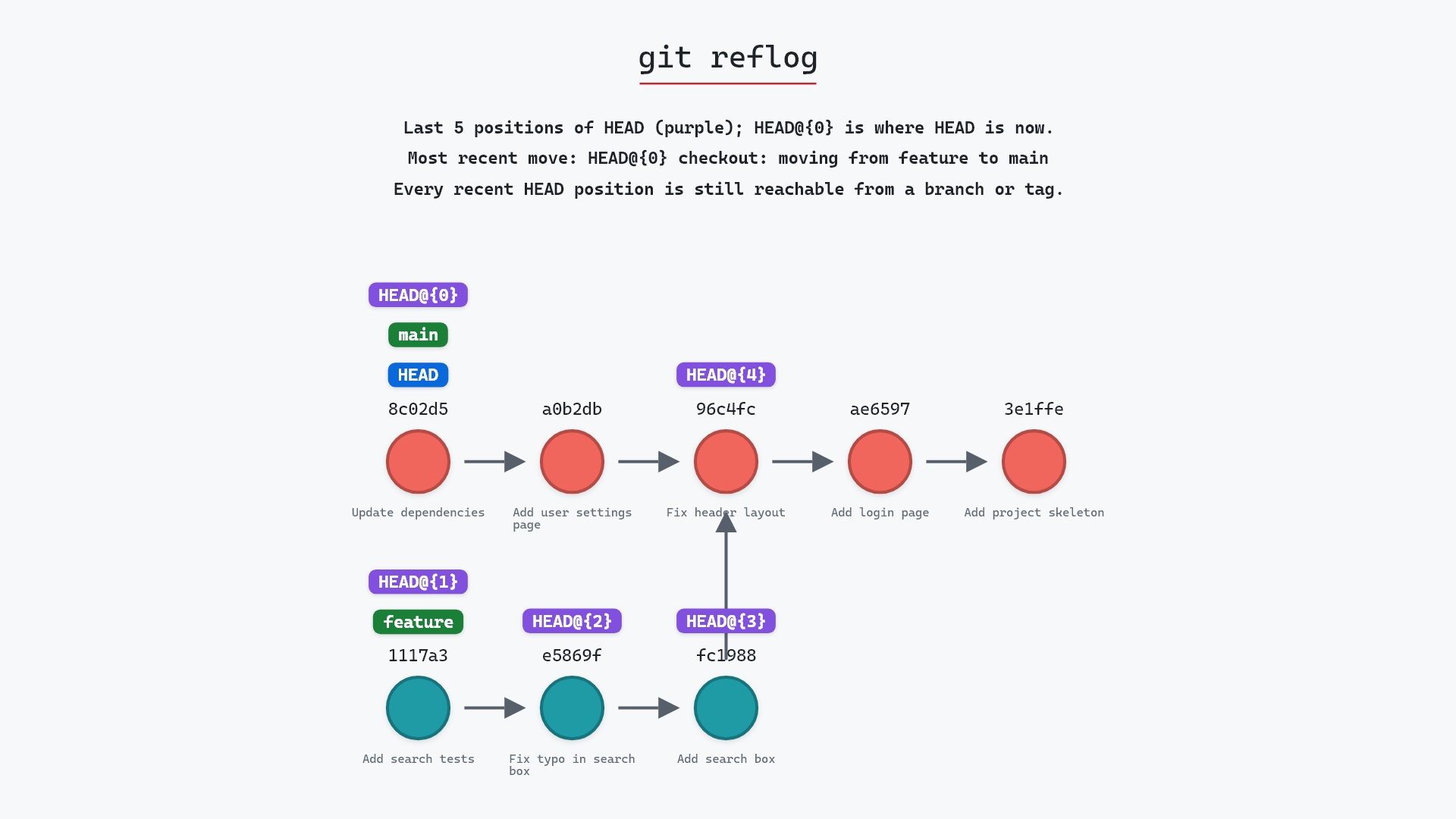
Git keeps a local log of every commit HEAD has pointed at, called the reflog, and the reset we just ran is at the top of it:
git reflog
96c4fc2 HEAD@{0}: reset: moving to HEAD~2
8c02d5b HEAD@{1}: commit: Update dependencies
The line below the reset shows where HEAD was before it. To get back there, reset to that commit:
git reset --hard 8c02d5b
The two commits are back on main. Here is git-sim's view of the reflog on the same repository, with each recent HEAD position labeled:
Reflog entries are kept for about 90 days by default, so this recovery works for a long time after the mistake. It does not recover the staged or unstaged edits, because those were overwritten on disk and Git never stored a copy of them.
Safer ways to get what you wanted
Depending on what you're trying to do, one of these is usually a better fit:
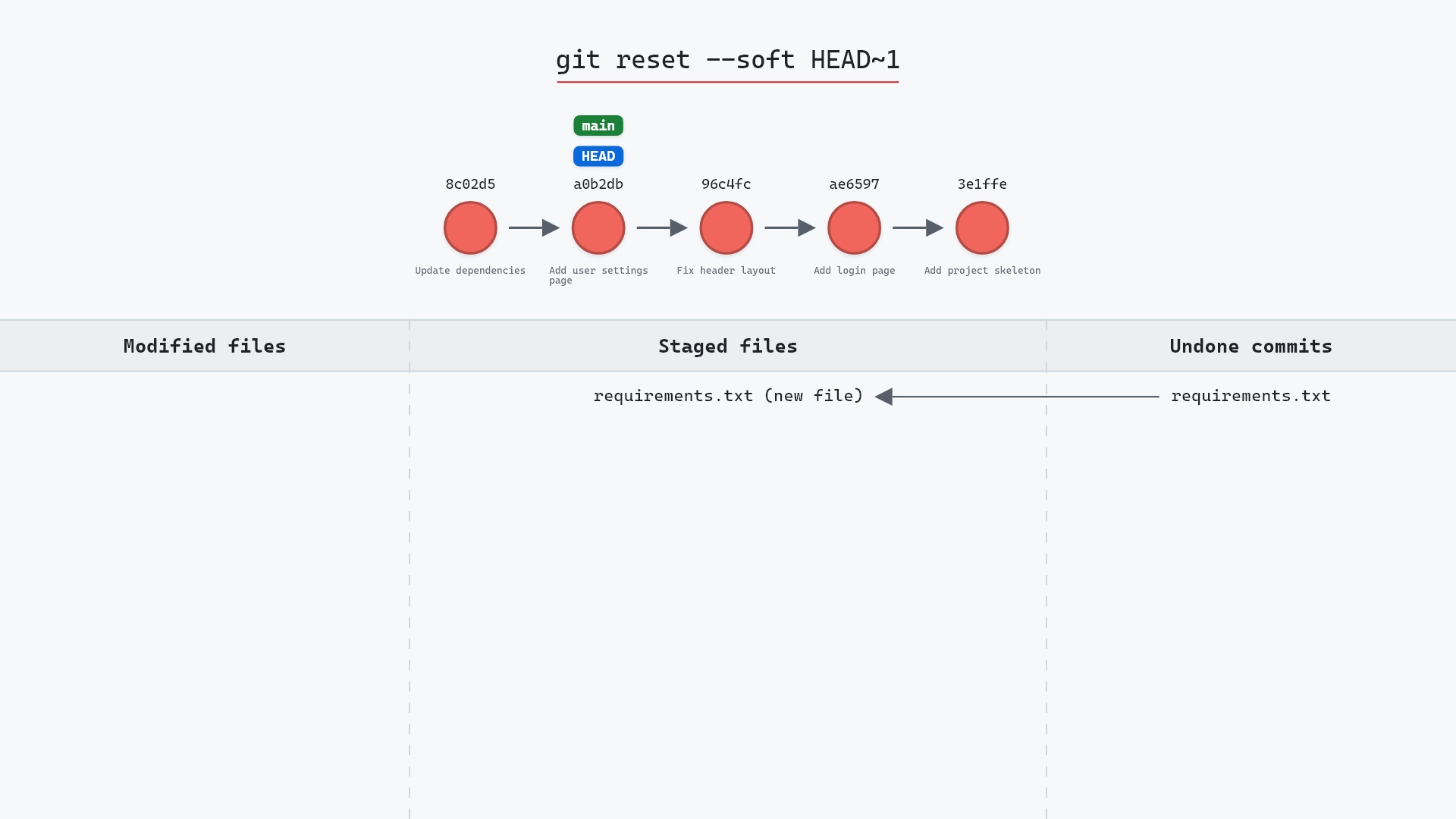
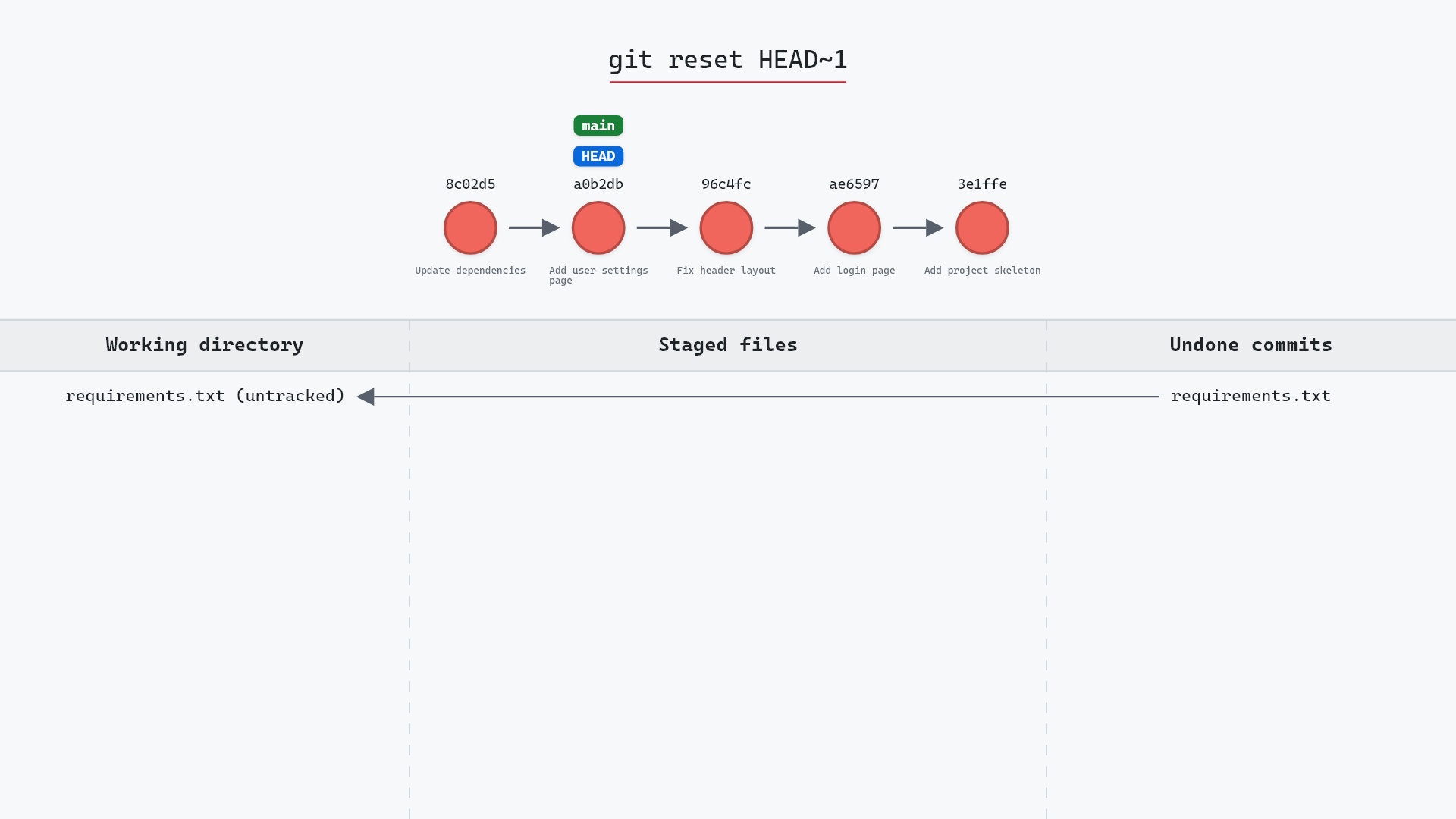
- To un-commit but keep the changes in your working directory:
git reset HEAD~2(the default mixed reset), orgit reset --soft HEAD~2to keep them staged as well. - To throw away the edits in a single file:
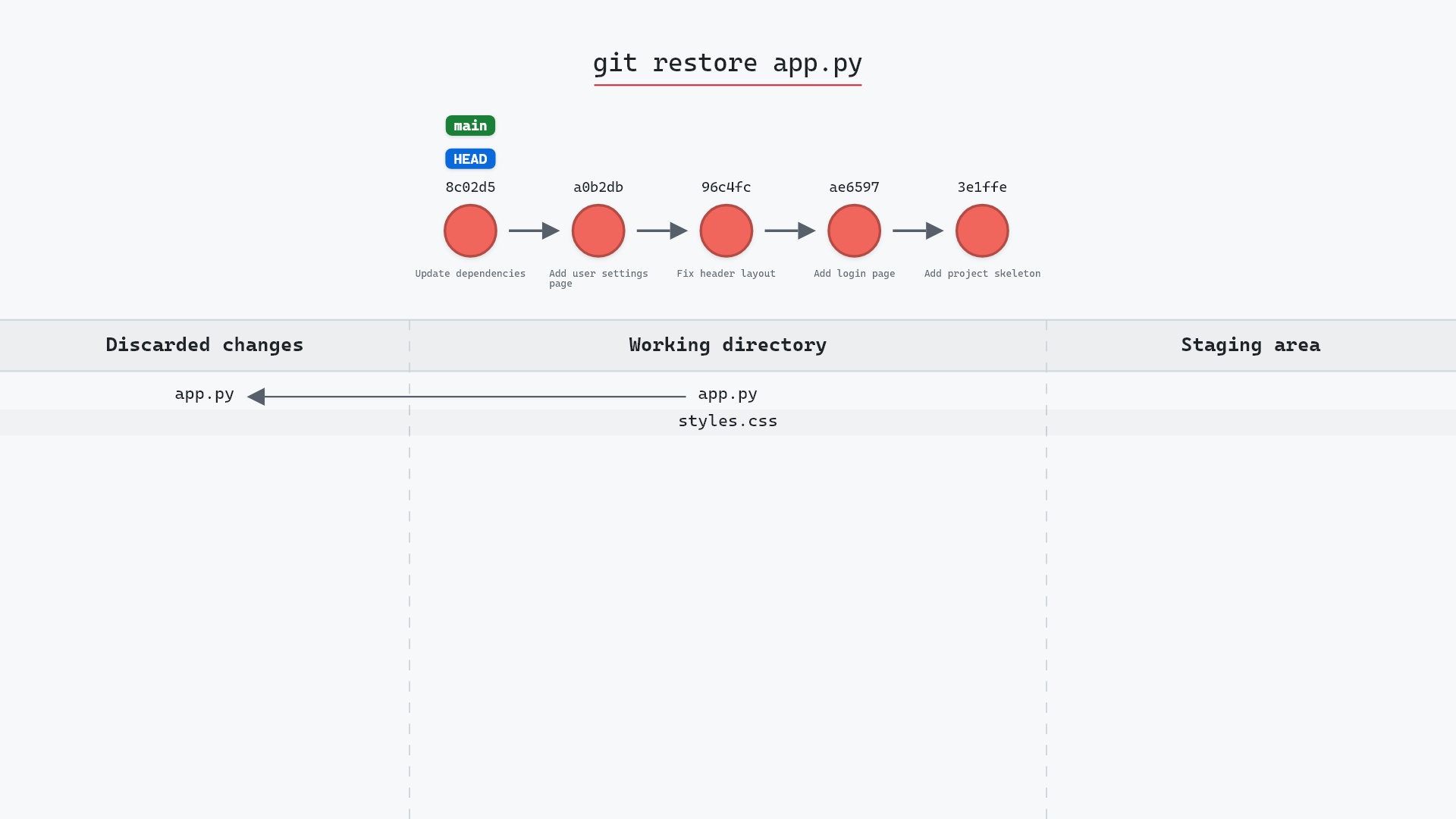
git restore <file>, which leaves the branch alone. - To undo a commit that has already been pushed:
git revert <commit>, which adds a new commit instead of moving the branch, so your teammates' history stays intact. - To set uncommitted work aside for later:
git stash.
--hard is the right choice when you really do want all three effects at once and you have no uncommitted changes you care about. In my experience that's less often than people actually run it.
Try it on your repository
pip install git-sim
git-sim reset --hard HEAD~2
git-sim reads your repo and shows where the branch would end up, which commits would fall off of it, and which uncommitted changes would be overwritten, without actually running the reset. Check that last list carefully before you run the real thing.
Common questions
Does git reset --hard delete commits?
Not from the object database. It moves your branch so the commits are no longer reachable from it. They stay in .git and in the reflog for around 90 days, and you can point a branch back at them with git reset --hard <sha> or git branch rescue <sha>.
Does git reset --hard delete untracked files?
No. Reset only touches files Git is tracking. Untracked files stay where they are. git clean is the command that removes them.
Can I undo git reset --hard?
The commits, yes: git reflog shows where HEAD was before the reset, and git reset --hard <that-sha> takes you back. Uncommitted changes in tracked files are overwritten on disk and cannot be recovered by Git.
What is the difference between git reset --hard and git reset --soft?
--soft only moves the branch, leaving the staging area and your files as they are. --hard moves the branch and rewrites both the staging area and your files to match the target commit.
Summary
In this article, we watched git reset --hard HEAD~2 move main back two commits and overwrite the working directory, saw that the untracked file survived while the staged and unstaged edits did not, and used the reflog to get the commits back.
Next steps
Read git reflog to learn more about how Git tracks the history of HEAD. Then take a look at git reset --soft and git restore, which each do one part of what --hard does.
Related commands
- git reflog, the way back
- git reset --soft, move the branch and keep everything staged
- git reset, the default: keep your edits, unstage them
- git restore, discard changes to one file
- git revert, undo a pushed commit without rewriting history
- git stash, set work aside before a risky command