Git commands
How git checkout -b creates a branch where you stand
git checkout -b: branch and switch in one move
How to use this page
- slider / ▶Drag the slider, or press play, to watch the command happen. Before and After jump to either end.
- ← → · spaceStep through a multi-step command; space toggles Before / After.
- APlay or pause the loop (the page opens playing). Any manual input takes over.
- hoverA commit shows its message, author, date and parents, with its history highlighted.
- clickCopies the commit sha.
- ctrl + wheelZoom around the cursor (pinch on a trackpad). Double-click resets the view.
- EscStop playback, reset the view, close this menu.
- shareThe Share button copies a link to this graph, copies it as an image, downloads PNG/SVG/page, or posts it. #before, #after or #step=N in the link pins the state.
git-sim visually simulates any Git command in your own repos - from your terminal, IDE, or AI.
Table of Contents
- Introduction
- What is git checkout -b?
- Watch it happen
- Before and after
- Starting from somewhere else
- Is it safe?
- How to undo it
- Try it on your repository
- Common questions
- Summary
- Next steps
- Related commands
Introduction
Nearly every piece of work in Git starts the same way: you're on main, you want a branch for the thing you're about to do, and you want to be on it. git checkout -b does both in one command, and it's so common that it's the form of checkout many people use most.
In this article, we'll:
- Watch
git checkout -b hotfixcreate a branch and switch to it - Confirm that nothing else in the repository changed
- Look at how to branch from a different commit and how
switch -ccompares
What is git checkout -b?
git checkout -b <name> is git branch <name> followed by git checkout <name>. It writes a new ref file under .git/refs/heads/ pointing at the current commit, then points HEAD at that new ref. Because the new branch is at the same commit you were already on, the working directory doesn't need to change at all.
Watch it happen
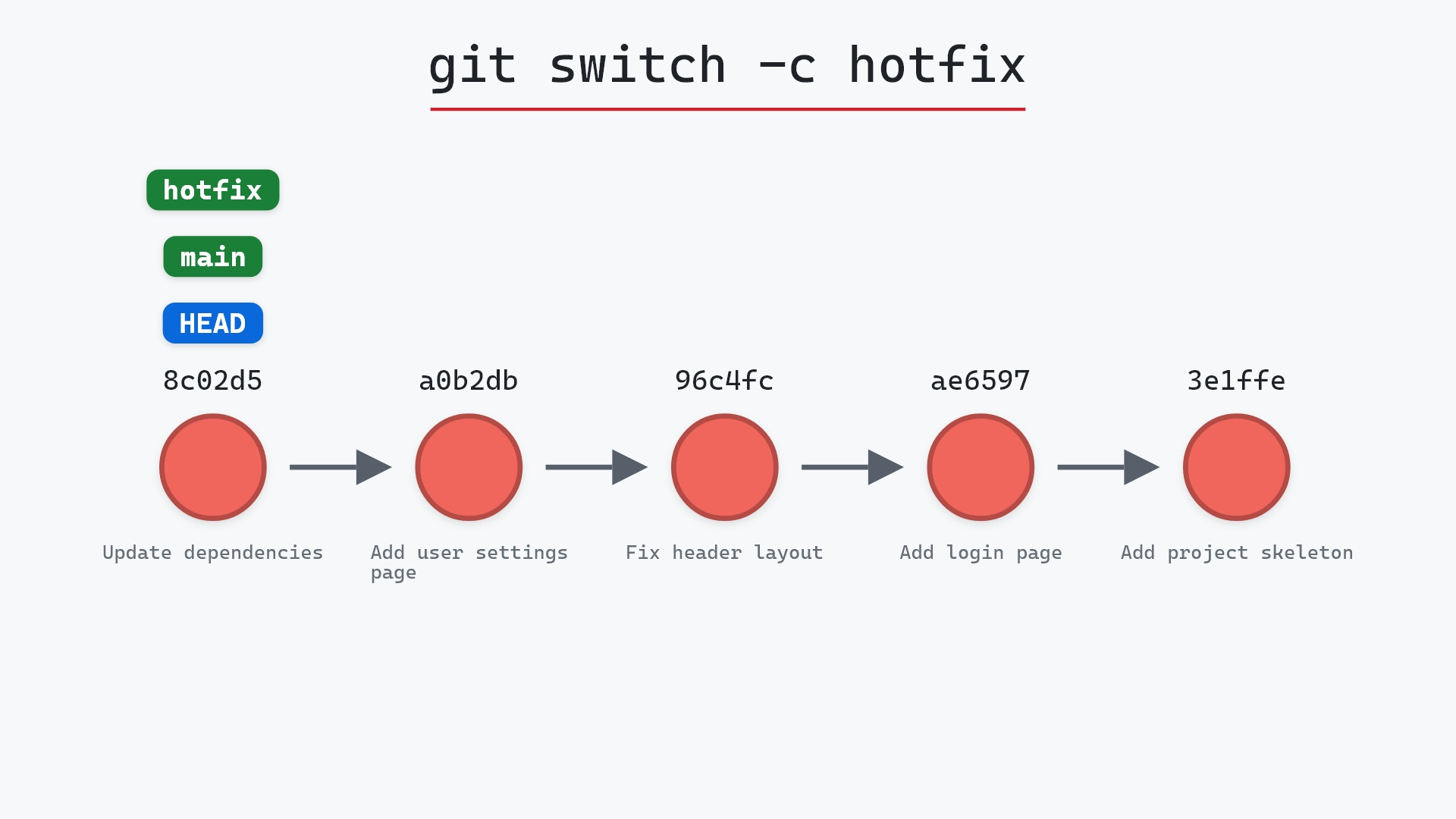
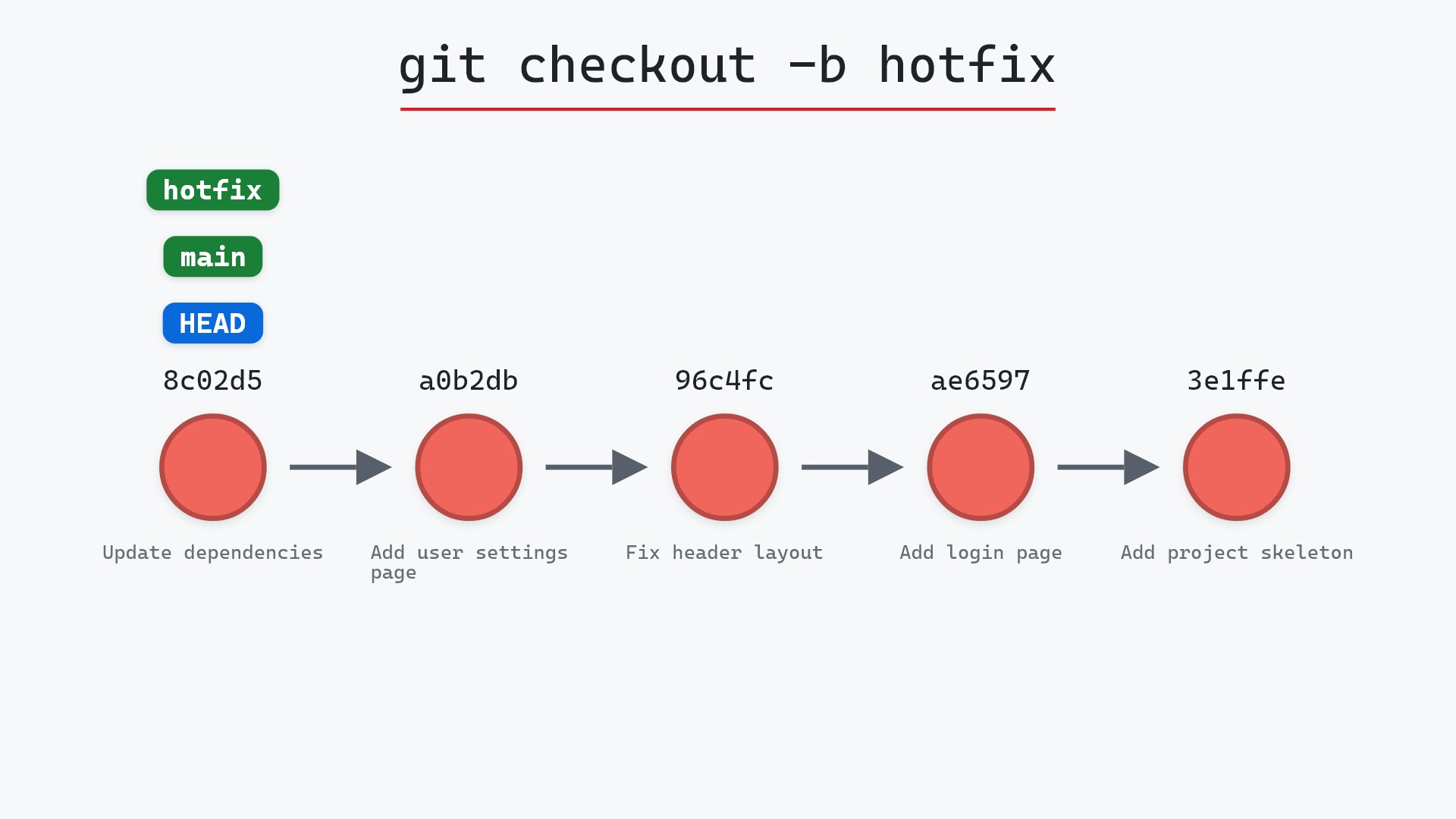
Our sample repo has a new branch created from the current commit. Here's git checkout -b hotfix:
- Before:
HEADis attached tomainat8c02d5b. There is nohotfixyet. - Git creates
hotfixpointing at8c02d5b, the same commit asmain, and attachesHEADto it. mainstays where it was, and no commits are created. Two branches now point at the same commit.
Before and after
Two branches now point at 8c02d5b, and HEAD follows the new one. git status reports hotfix as the current branch. Your files are exactly as they were, since both branches point at the same snapshot. The next commit you make will move hotfix forward and leave main behind.
The raw git output, if you want to read along in text
git log --oneline --graph --all
before
* 1117a34 (feature) Add search tests
* e5869f0 Fix typo in search box
* fc19889 Add search box
| * 8c02d5b (HEAD -> main) Update dependencies
| * a0b2db3 Add user settings page
|/
* 96c4fc2 Fix header layout
* ae65976 Add login page
* 3e1ffe4 Add project skeleton
* 4114b2c Initial commit
after
* 1117a34 (feature) Add search tests
* e5869f0 Fix typo in search box
* fc19889 Add search box
| * 8c02d5b (HEAD -> hotfix, main) Update dependencies
| * a0b2db3 Add user settings page
|/
* 96c4fc2 Fix header layout
* ae65976 Add login page
* 3e1ffe4 Add project skeleton
* 4114b2c Initial commit
what git printed
Switched to a new branch 'hotfix'Starting from somewhere else
Add a starting point (the git checkout documentation calls it <start-point>) to branch from a commit other than the one you're on:
git checkout -b hotfix 96c4fc2
That creates hotfix at 96c4fc2 and switches to it, which does change your working directory to match that older commit. It's the form you want when a bug needs fixing on top of a release rather than on top of your current work.
git checkout -b out of muscle memory, even though I'd tell anyone learning today to use git switch -c. The two do the same thing here. The difference only shows up in the ways checkout can be misused, and a new command with one job is easier to teach.
Is it safe?
Safe git-sim pre-flight
Switches to 'hotfix'.
Creating a branch and switching to it at your current commit changes one file in .git and moves HEAD. Your working directory is untouched, so uncommitted changes come along and nothing is at risk.
How to undo it
Switch back and delete the branch:
git checkout main
git branch -d hotfix
Since hotfix points at the same commit as main, -d deletes it without complaint.
Try it on your repository
pip install git-sim
git-sim checkout -b hotfix
git-sim shows the new label and where HEAD would move, and with a starting commit it shows which commit the branch would begin from.
Common questions
What does git checkout -b do?
It creates a new branch at the current commit and switches to it. It's git branch <name> and git checkout <name> in one step.
What is the difference between git checkout -b and git switch -c?
They do the same thing. switch -c is the newer spelling from Git 2.23, part of splitting checkout's many jobs into single-purpose commands.
Does git checkout -b change my files?
Not when branching from the current commit, since the new branch points at the same snapshot. Branching from a different commit does update your files to match it.
How do I create a branch from a specific commit?
git checkout -b <name> <commit>, or git switch -c <name> <commit>.
Summary
In this article, we watched git checkout -b create a hotfix branch on the current commit and move HEAD onto it, confirmed that main and the working directory stayed as they were, and saw how to start the branch from an older commit.
Next steps
git switch -c is the same operation in its modern spelling. Once the branch has commits on it, git merge brings them back.
Related commands
- git switch -c, the modern spelling
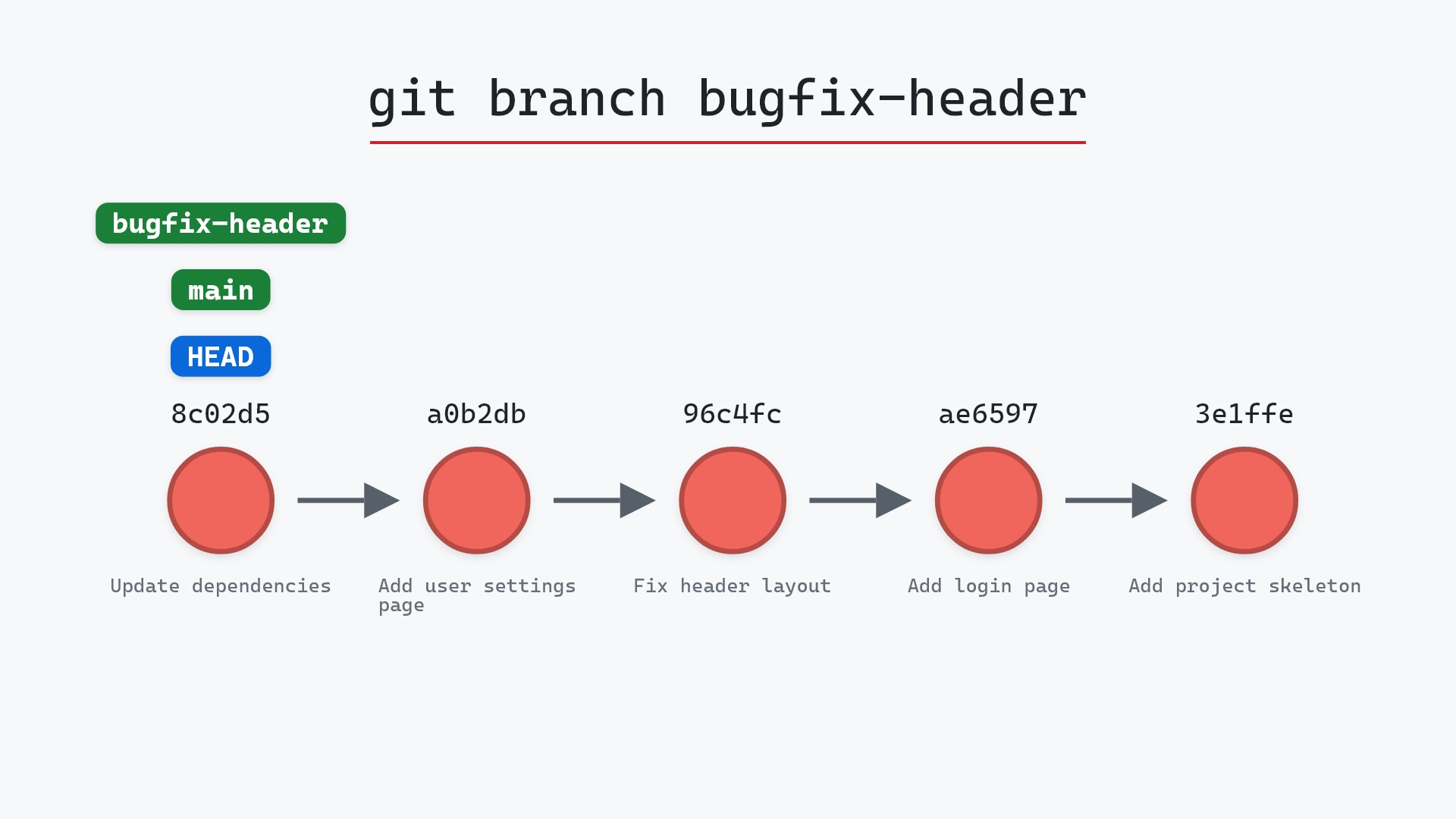
- git branch, to create without switching
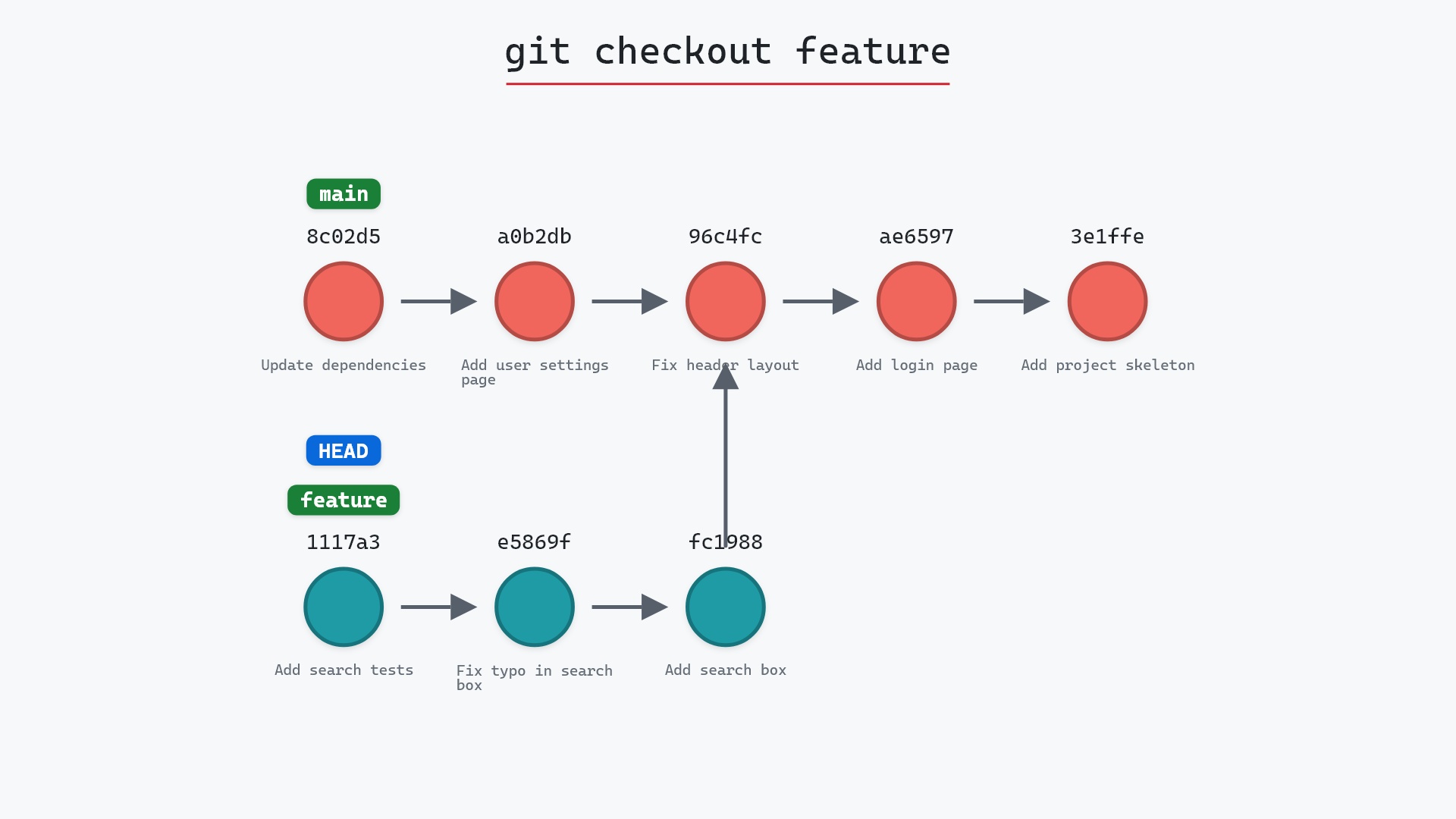
- git checkout, to switch without creating
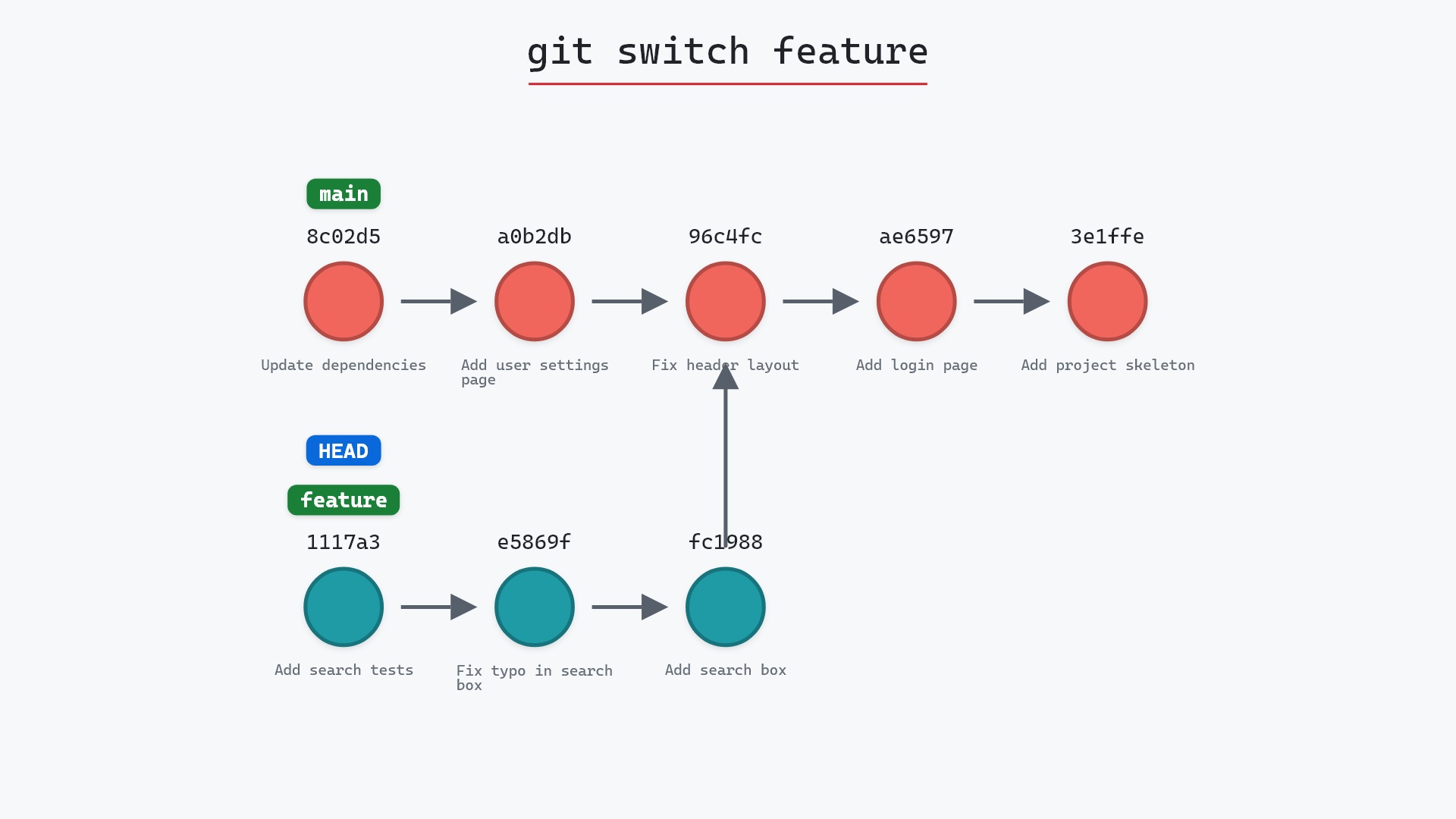
- git switch, the modern switcher
- git commit, to start putting work on the branch
- git merge, to bring it back to main