Git commands
How to squash a branch into one commit with git merge --squash
git merge --squash: a whole branch as one staged change
How to use this page
- slider / ▶Drag the slider, or press play, to watch the command happen. Before and After jump to either end.
- ← → · spaceStep through a multi-step command; space toggles Before / After.
- APlay or pause the loop (the page opens playing). Any manual input takes over.
- hoverA commit shows its message, author, date and parents, with its history highlighted.
- clickCopies the commit sha.
- ctrl + wheelZoom around the cursor (pinch on a trackpad). Double-click resets the view.
- EscStop playback, reset the view, close this menu.
- shareThe Share button copies a link to this graph, copies it as an image, downloads PNG/SVG/page, or posts it. #before, #after or #step=N in the link pins the state.
git-sim visually simulates any Git command in your own repos - from your terminal, IDE, or AI.
Table of Contents
- Introduction
- What is git merge --squash?
- Watch it happen
- Before and after
- Is it safe?
- How to undo it
- Useful forms
- Try it on your repository
- Common questions
- Summary
- Next steps
- Related commands
Introduction
If you've ever finished a feature branch with commits like "Fix typo" and "Oops, forgot the test", you've probably wished you could bring the work into main as one tidy commit. git merge --squash does that. It takes everything the branch changed and stages it on your current branch as a single set of changes, then stops and lets you write the commit yourself.
In this article, we'll:
- Watch
git merge --squash featurestage the changes from three commits without movingmainorHEAD - See why
featureisn't counted as merged afterwards, and what that means forgit branch -d - Compare it with a normal merge and with GitHub's "Squash and merge" button
What is git merge --squash?
git merge --squash <branch> works out the same combined result a merge would produce, writes it to your working directory and your staging area, and stops there. It doesn't make a commit, it doesn't move your branch, and it doesn't record that <branch> was merged.
When you run git commit afterwards, you get one ordinary commit with a single parent. It contains all of the branch's changes, but as far as Git's history is concerned it has no connection to the branch they came from.
Watch it happen
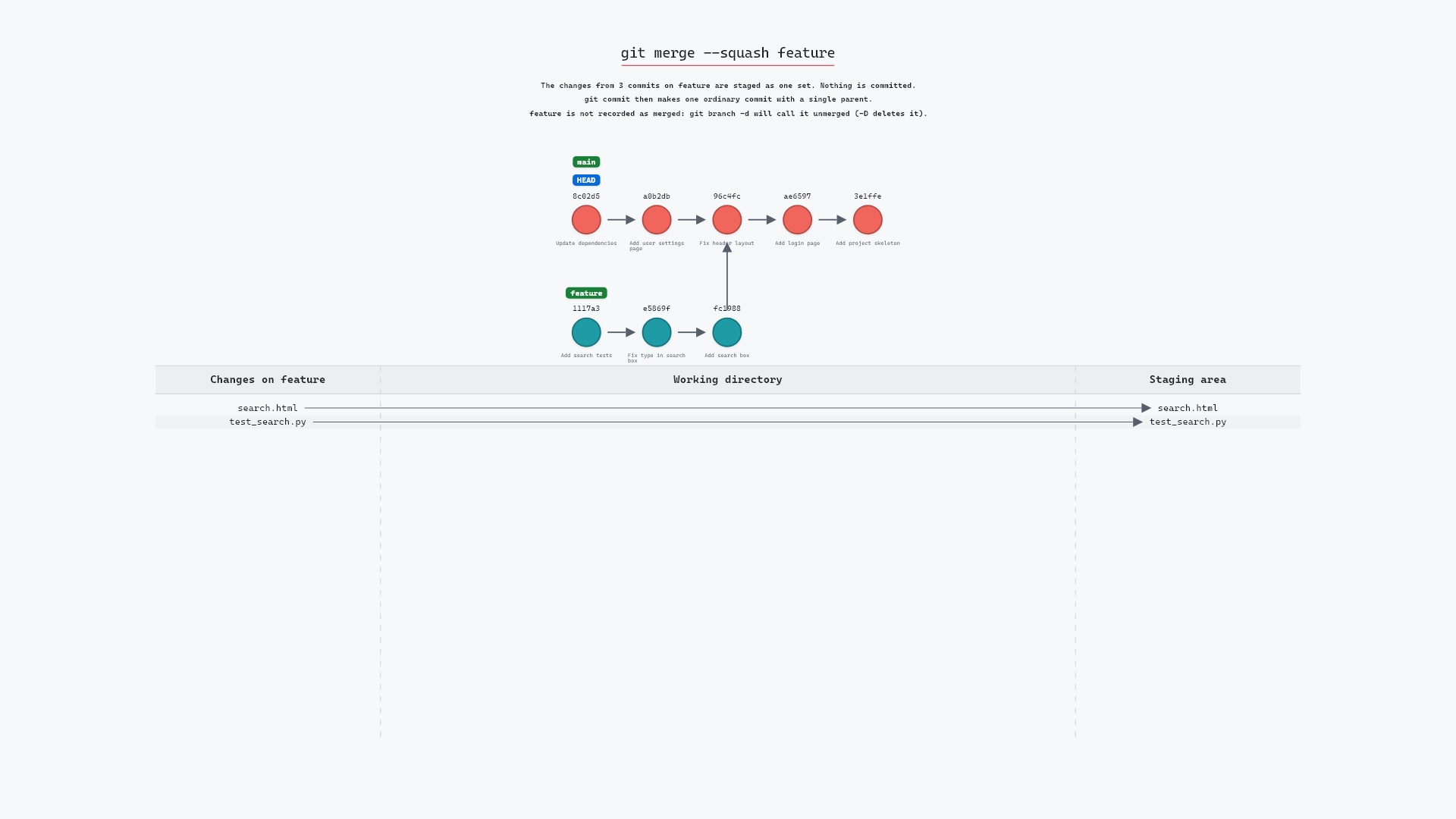
Our sample repo has main checked out; feature has three commits of its own: "Add search box" (fc19889), "Fix typo in search box" (e5869f0) and "Add search tests" (1117a34), branching off "Fix header layout" (96c4fc2). main has moved on to 8c02d5b "Update dependencies". Here's git merge --squash feature:
- Before:
mainandHEADpoint at8c02d5b, andfeaturepoints at1117a34, three commits past96c4fc2. Those commits add two files,search.htmlandtest_search.py, thatmaindoesn't have. - Git stages
search.htmlandtest_search.py, the changes from all 3featurecommits combined, but commits nothing, so neithermainnorHEADmoves. A latergit commitmakes one ordinary commit with a single parent, andfeatureisn't recorded as merged, sogit branch -dwill call it unmerged (-Ddeletes it).
Before and after
The log is identical before and after. All the change is in git status --short, which goes from empty to this:
A  search.html
A  test_search.py
Both files are new on feature, so they show up as added. Git's own output says it plainly:
The raw git output, if you want to read along in text
git log --oneline --graph --all
before
* 1117a34 (feature) Add search tests
* e5869f0 Fix typo in search box
* fc19889 Add search box
| * 8c02d5b (HEAD -> main) Update dependencies
| * a0b2db3 Add user settings page
|/
* 96c4fc2 Fix header layout
* ae65976 Add login page
* 3e1ffe4 Add project skeleton
* 4114b2c Initial commit
after
* 1117a34 (feature) Add search tests
* e5869f0 Fix typo in search box
* fc19889 Add search box
| * 8c02d5b (HEAD -> main) Update dependencies
| * a0b2db3 Add user settings page
|/
* 96c4fc2 Fix header layout
* ae65976 Add login page
* 3e1ffe4 Add project skeleton
* 4114b2c Initial commit
what git printed
Squash commit -- not updating HEAD
Automatic merge went well; stopped before committing as requested
"Squash commit -- not updating HEAD" is Git telling you that HEAD stays on 8c02d5b. It also writes a draft message to .git/SQUASH_MSG, listing the three squashed commits, so when you run git commit the editor opens with that list ready to trim down:
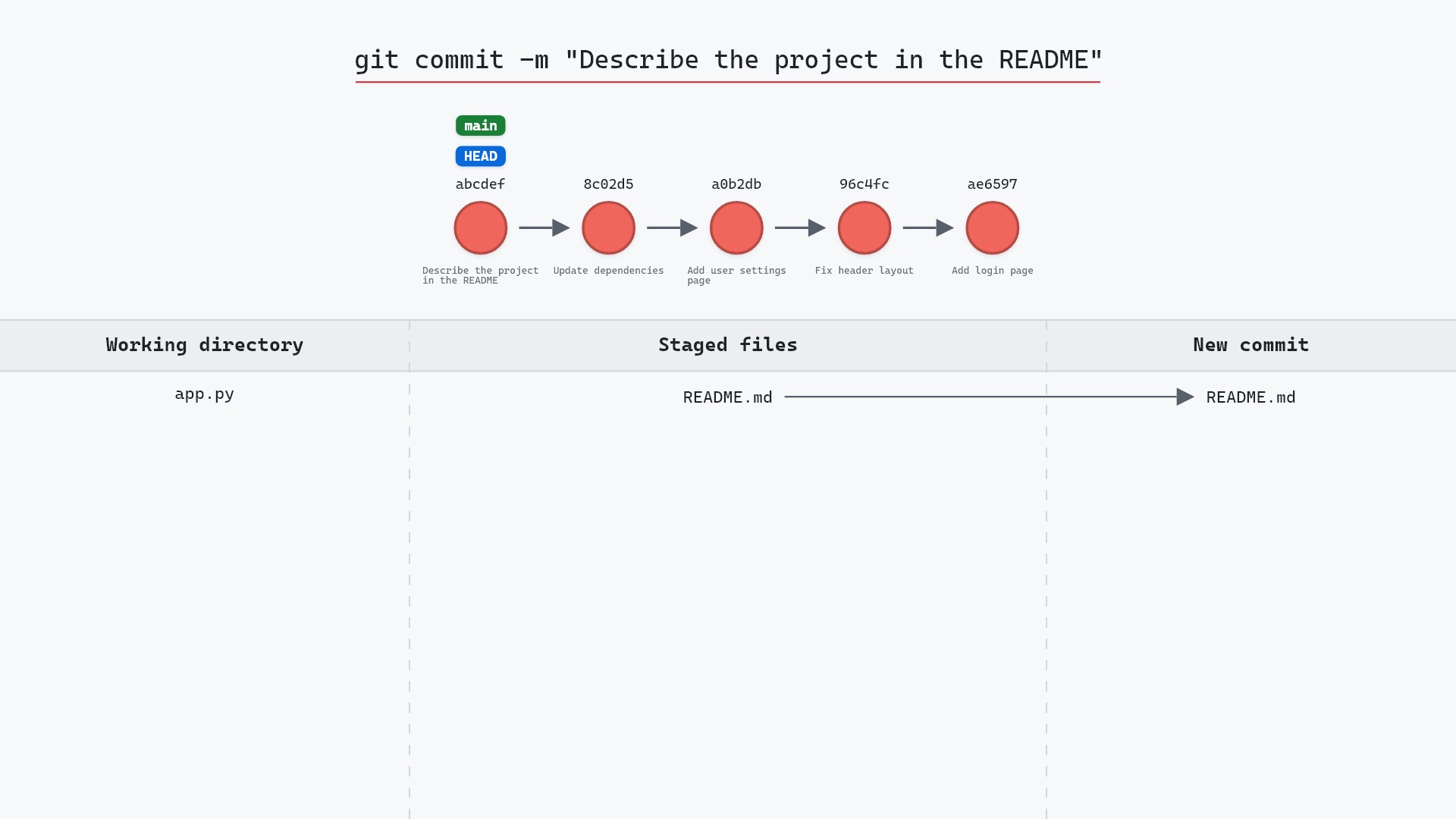
git commit
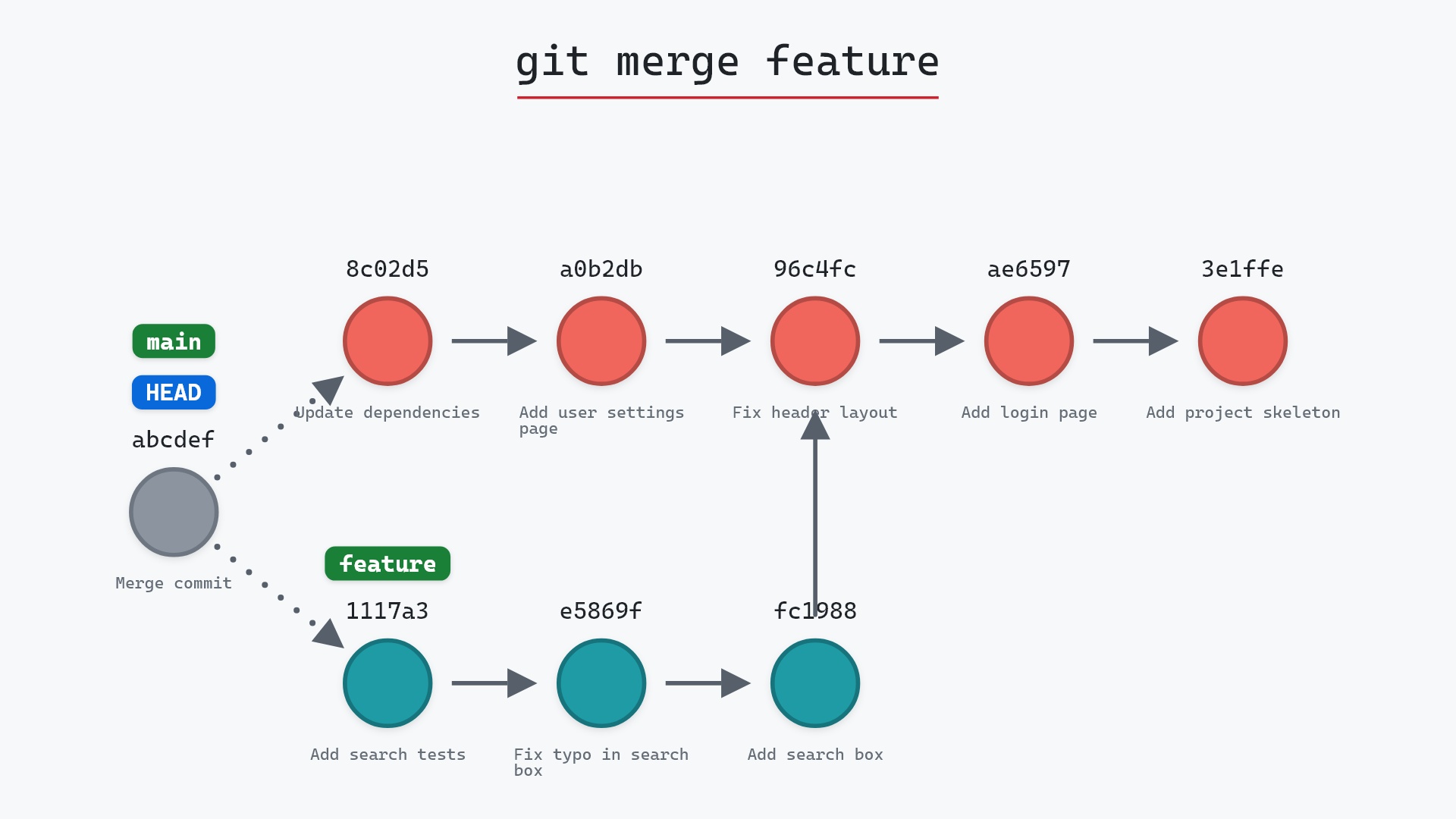
The new commit's only parent is 8c02d5b. Compare that with a normal git merge, which would have made a commit with two parents, 8c02d5b and 1117a34, and kept the three feature commits in main's history.
Is it safe?
Safe git-sim pre-flight
Stages the combined changes of 3 commit(s) from feature as one change; nothing is committed, and feature is not recorded as merged.
The way back
Nothing is committed. To drop the staged changes: git reset --merge (changes you made before the squash are kept)
It is. Nothing is committed and no branch moves, so the only thing that changed is your staging area and working directory. feature still has all three of its commits.
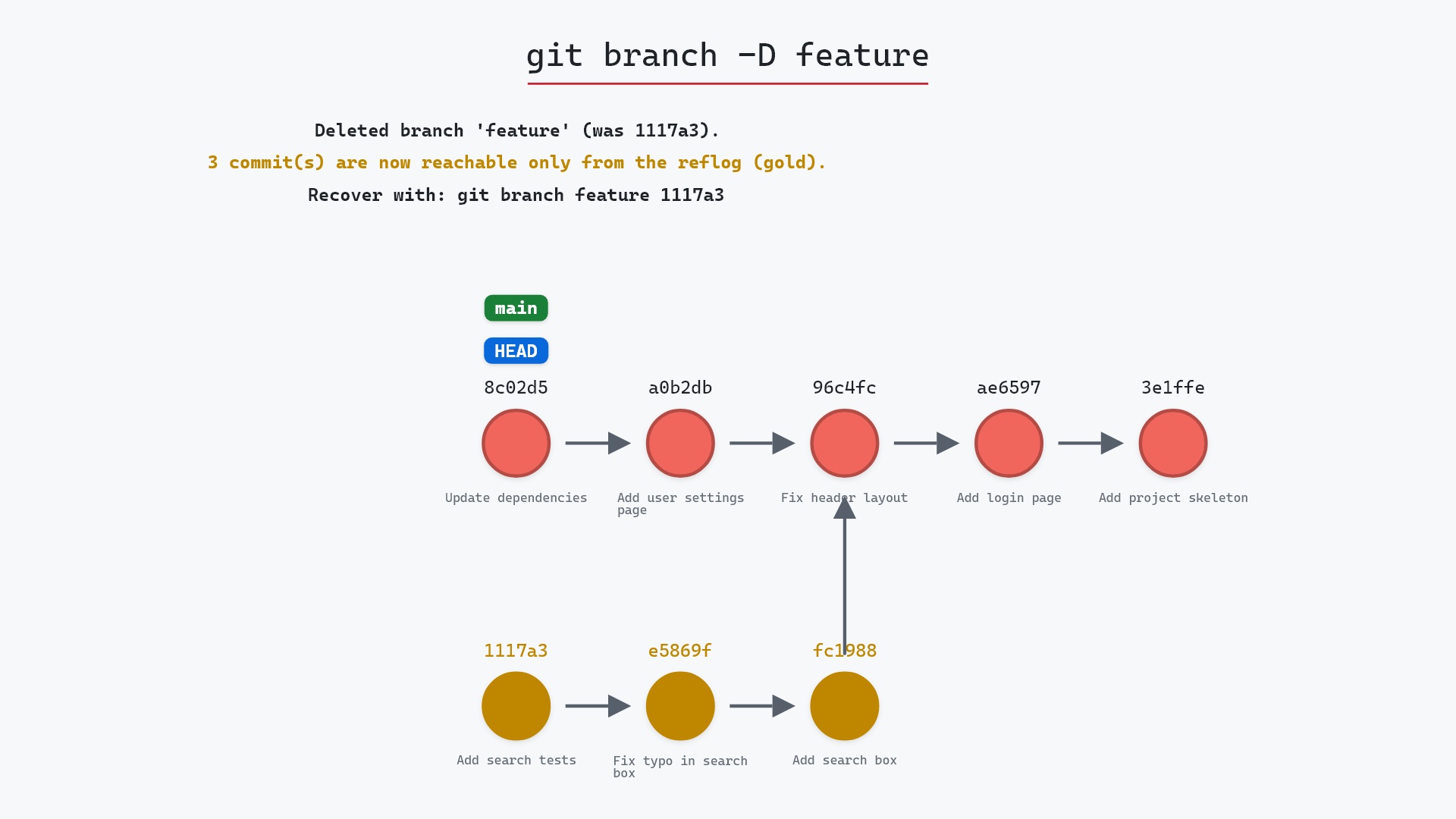
The part that surprises people comes later. Because the squash commit has no link to feature, Git doesn't consider feature merged. git branch -d checks exactly that, so it refuses with a "not fully merged" error. That's expected after a squash. If you've checked the work is in main, delete the branch with git branch -D. And if you keep committing on feature and squash it again later, Git will try to bring in the old changes a second time, often with conflicts, so start a fresh branch instead.
main, which I've only missed a couple of times.
How to undo it
Before you commit, clear the staged result:
git reset --hard
That puts the staging area and working directory back to 8c02d5b, which removes search.html and test_search.py. It also throws away any other uncommitted edits, so check git status first. git merge --abort won't help here: a squash doesn't start a real merge, so there's no merge in progress to abort.
If you've already committed, the squash commit is an ordinary commit on top of 8c02d5b, and
git reset --hard HEAD~1
removes it. feature is untouched either way.
Useful forms
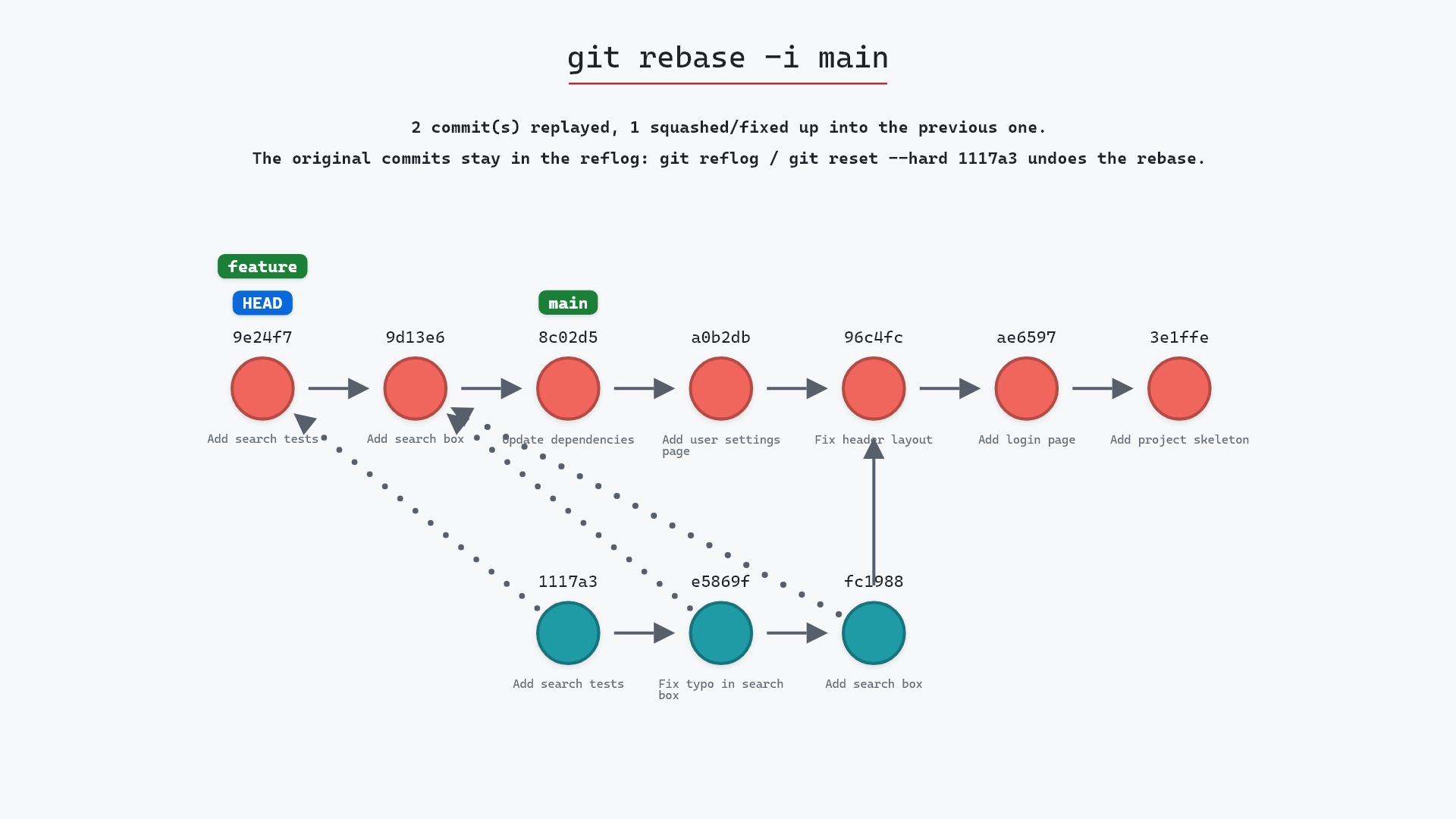
git merge --squash featurefollowed bygit commit -m "Add search"is the whole workflow when you don't want to edit the drafted message.git rebase -i mainonfeatureis the other way to get one commit: squash the branch's commits on the branch itself, then merge. The branch then does count as merged.- On GitHub, the "Squash and merge" button on a pull request does the squash and the commit in one go. GitHub's page on merge methods explains it. Locally, the branch you squashed looks unmerged afterwards, for the same reason as above.
- If the branches conflict,
--squashstops with the conflict markers in place, just like a normal merge. Resolve the files,git addthem and rungit commit.
The --squash entry in the git merge documentation has the details, including that it can't be combined with --commit.
Try it on your repository
pip install git-sim
git-sim merge --squash feature
git-sim shows which files the squash would stage, before anything is written to your working directory.
Common questions
Does git merge --squash create a commit?
No. It stages the combined changes and stops. You make the commit yourself with git commit, and it ends up as an ordinary commit with one parent.
Why does git branch -d say my branch is not fully merged after a squash?
Because the squash commit has no link to the branch's commits. Git checks whether the branch's tip is reachable from your current branch, and it isn't. Use git branch -D once you're sure the changes are in.
What is the difference between git merge and git merge --squash?
git merge creates a merge commit with two parents and keeps every commit from the branch in history. git merge --squash stages the same changes for one new single-parent commit, and the branch's commits don't become part of your history.
Is GitHub's "Squash and merge" the same as git merge --squash?
It produces the same kind of result: one new commit on the base branch holding all of the pull request's changes, with no link back to the original commits. GitHub also writes the commit for you.
Summary
In this article, we watched git merge --squash feature stage the changes from three commits as one set without moving main or HEAD, made the single-parent commit ourselves, and covered why Git still calls feature unmerged afterwards.
Next steps
git merge shows the normal merge for comparison. git rebase -i squashes on the branch itself.
Related commands
- git merge, the merge that keeps the branch's commits and records the merge
- git commit, the step that finishes a squash
- git branch -D, to delete the squashed branch
- git rebase -i, to squash commits on the branch before merging
- git merge --no-ff, for when you want the merge commit instead
- git branch -d, which refuses a squashed branch